








![Why PC Crashes When Starting Battlefield 6 [Easy Fix]](https://mitchcactus.co/wp-content/uploads/2026/01/Why-PC-Crashes-When-Starting-Battlefield-6-Easy-Fix.webp?w=1024)
PC crashes when starting Battlefield 6 isn’t a thing that doesn’t have a fix and also it’s not new. Because the players have been facing this exact issue since the game’s release. This issue of crashing PCs often includes the full reboots and black screens as well as the instant desktop dumps. You don’t even reach the menu to close the game yourself.
The good news? It’s completely avoidable and it’s not always about your GPU.
Fix 1. Check Your Power Delivery First
When your PC crashes when starting Battlefield 6, the first suspect isn’t always the game. It’s your PSU. The reason is associated with the system’s power as the BF6 pushes your system to deliver better textures as well as the shaders. And in most cases, when your system is unable to handle these, it most likely reboot as a security measure. It comes from the GPU power bursts.
Kernel-Power 41 error is the most significant sign related to these issues. In Windows Event Viewer, you can view this error and it basically means your system lost power suddenly.
Before retrying launching the game, you need to first stress-test your setup with OCCT’s Power Test. If it shut downs almost instantly then the problem is because of the power delivery issue of your PC.
You can easily avoid this from happening if you have an upgraded PSU, mostly which is able to handle higher transient load. For example Corsair HX1200i or similar can handle such power loads.
It’s quite common because even high-end PSUs like Seasonic models can struggle with RTX 40 and 50 series spikes.
Fix 2. Disable Windows Exploit Protection for Battlefield 6
Another sneaky reason PC crashes when starting Battlefield 6 is Windows itself. The Exploit Protection feature sometimes conflicts with EA’s Anti-Cheat system. It blocks memory access the game needs, causing instant shutdowns or freezes.
You can fix it in a few clicks. Type Exploit Protection in the Windows search bar. Go to “Program Settings” and click “Add program to customize.” Add both bf6.exe and EAAntiCheat.GameService.exe. Then scroll through each setting, check “Override system settings,” and turn every protection to OFF for these two files.
Restart your PC afterward. This one tweak alone has solved the launch crash for hundreds of players.
Fix 3. Recheck BIOS Settings (TPM 2.0 & Secure Boot)
BIOS is often the culprit reported by most players and the most common indicator is that your PC crashes when starting Battlefield 6 before even opening the splash screen.
The new anti-cheat system of BF6 is relying on TPM 2.0 as well as the Secure Boot. So, if they are disabled they will make the game crash without any error.
You are going to restart your PC and then press Del or F2 to enter BIOS.
In BIOS, you need to look for these two settings:
- TPM (for AMD it’s called fTPM and for Intel it’s PTT)
- Secure Boot (under Boot or Security tabs)
Enable both, save, and restart. This small change fixes nearly half of all silent crashes.
Fix 4. Turn Off XMP If You’re Overclocking
Yes, Battlefield 6 hates unstable overclocks. If you’ve got XMP or EXPO enabled for your RAM, try disabling it. Many players report their game crashing a few minutes into matches, turning off XMP completely stopped the issue for them.
It’s a small performance drop, but stability is worth it. Once you’ve confirmed the game runs fine, you can test re-enabling it later.
Fix 5. Perform a Clean GPU Driver Install
A simple corrupted driver can also be the cause of the problem as it may also trigger crashes.
You need to download Display Driver Uninstaller (DDU) while also trying to boot into Safe Mode.
Once done, you need to uninstall your current GPU drivers completely. To get the cleaner versions of drivers, you need to reinstall them from NVIDIA or AMD’s official site. It’s better if you install them manually and give GeForce Experience some rest.
Many players found that doing this stopped their PC crashes when starting Battlefield 6 completely, especially after major updates like Red Sec.
Fix 6. Repair Battlefield 6 Files
If all else fails, the crash might be from a broken game file. Big patches often corrupt a texture or shader.
If you’re on Steam, right-click Battlefield 6 and then go to the Properties and then Installed Files. Now, go to the Verify integrity of game files. On the EA App, click the three dots under the game and select Repair. This forces the launcher to recheck every file and redownload damaged ones.
A single missing script can crash the game instantly, so don’t skip this step.
Bonus Fix. Adjust Virtual Memory
Your PC’s memory limits is also behind this issue and here’s how you can fix it:
- Search Advanced System Settings in Windows.
- Go to the Performance tab and then the Settings. Go to the Advanced and then the Virtual Memory.
- You need to uncheck the Automatically manage paging file size.
- Then add the custom values to 30000 for both initial and maximum size.
Click Set and restart your PC. This gives Windows more breathing room and can prevent crashes during shader compilation or map loading.
Real Reason It Happens
Most players dealing with PC crashes when starting Battlefield 6 are facing one of three issues, unstable power delivery, Windows Exploit Protection conflicts, or minor overclock instability. Once you stabilize those, Battlefield 6 runs beautifully.
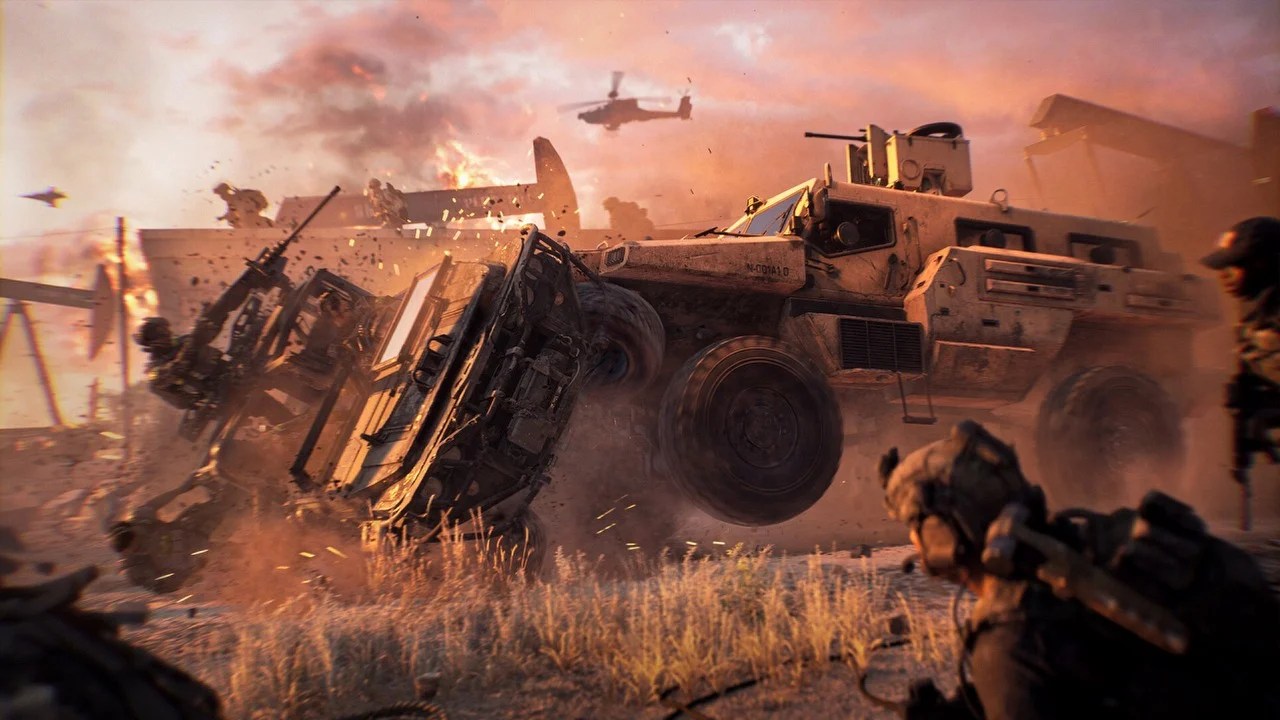
After fixing these, you’ll finally be able to enjoy the chaos, explosions, and squad pushes without your PC tapping out first.
If you’re planning to grind harder now that your system’s stable, you can grab Battlefield 6 Double XP Codes at MitchCactus. These codes double your weapon and account XP for 15 minutes each, helping you rank up faster after every fix. They work on all platforms, come with instant delivery, and are the perfect way to make up for all those crash-filled hours.


