







Fixing the “Unable to Connect to Host” Error in Black Ops 7
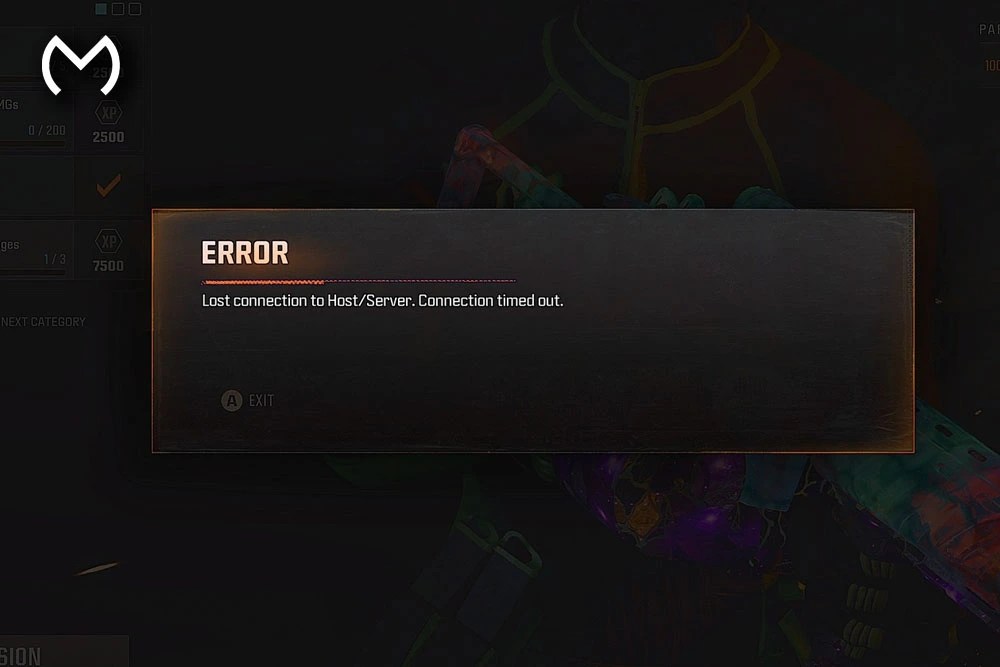
Yep, getting hit with the “unable to connect to host” error in Black Ops 7 is one of those moments that instantly kills the vibe. You’re ready to hop into a match, party up with friends, or grind your weapon levels — and boom, error screen. All good though. This guide breaks down why it happens and exactly how to fix it step-by-step.
Let’s walk through it together.
Why Black Ops 7 Shows the “Unable to Connect to Host” Error
Before diving into fixes, it helps to know what’s actually going on behind the scenes. This error usually pops up when something interrupts the handshake between your device and the match host.
Here are the most common causes:
- Server congestion or temporary outages
- NAT type conflicts
- Router restrictions or strict firewall settings
- Unstable Wi-Fi or bandwidth spikes
- Game version mismatches between players
- ISP routing issues
- Corrupted local network cache
Got it? Cool — now let’s fix it.
How to Fix “Unable to Connect to Host” in Black Ops 7
These solutions are listed from easiest to most advanced. Start at the top and work your way down until the issue clears.
1. Restart Your Game and Device (Yep, It Helps)
Sounds basic, but honestly? This clears the majority of connection hiccups.
Do this:
- Fully close Black Ops 7
- Power-cycle your console or PC
- Relaunch the game fresh
This forces your system to establish a new connection rather than trying to reuse a glitchy one.
2. Check Your Internet Speed and Stability
A solid connection matters more than raw speed. Even if you’ve got “fast” internet, unstable Wi-Fi can cause host errors.
Try this:
- Run a speed test
- Aim for at least 10 Mbps download and 3 Mbps upload for reliable multiplayer
- Move closer to your router
- Switch to Ethernet if possible — wired is way more stable
If your ping spikes, that’s usually the culprit.
3. Confirm Black Ops 7 Servers Are Online
Sometimes the issue isn’t you at all. When BO7 servers get overloaded or go into maintenance, players commonly see the unable to connect to host message.
You can check quickly by searching social platforms like X/Twitter or using general outage trackers. If servers are down, no worries — you’ll just need to wait it out.
4. Make Sure Your Game Is Updated
If you’re running an older build, you might have trouble joining lobbies hosted by players who already updated.
Double-check that:
- Your game updated fully
- No background downloads are stuck
- Your platform didn’t auto-pause an update
Easy fix, but often overlooked.
5. Check Your NAT Type (Super Common Cause)
If your NAT type is Strict or Type 3, you can expect major connection issues.
Here’s what to look for:
- Open / Type 1 → Ideal
- Moderate / Type 2 → Usually fine
- Strict / Type 3 → Causes host problems, matchmaking delays, dropped party connections
If you’re stuck on Strict, don’t worry — we’ll fix that next.
6. Enable UPnP in Your Router Settings
UPnP (Universal Plug and Play) helps your console/PC communicate freely through your router.
Steps vary by router brand, but it usually goes like this:
- Log into your router’s admin page
- Locate UPnP
- Toggle ON
- Restart your router
This alone resolves NAT issues for many players.
7. Port Forwarding (Advanced but Effective)
If UPnP doesn’t fix the error, manually forwarding the necessary ports can help. Black Ops titles typically require certain ports for stable connections. Your router’s support page will show you exactly how to set these up.
After forwarding ports, restart your router and test again. This fix is especially helpful if multiple gamers in your household are playing Call of Duty at the same time.
8. Check Firewall or Antivirus Restrictions
On PC, an overly aggressive firewall or antivirus suite might block essential game connections.
Try:
- Allowing Black Ops 7 through your firewall
- Whitelisting the game in your antivirus
- Disabling “real-time network protection” temporarily (for testing only)
Don’t skip this — it’s a very common cause on Windows systems.
9. Clear Your Local Network Cache
Consoles and PCs store temporary network data that sometimes becomes corrupted.
Quick reset:
- Power off
- Unplug for 30–60 seconds
- Plug back in and reboot
This refreshes routing information and often resolves stubborn host issues.
10. Double-Check VPNs, Proxies, or Shared Networks
If you’re using a VPN, proxy, university network, hotel Wi-Fi, or mobile hotspot, you may see more host errors simply because the connection routes aren’t stable.
Try switching to a standard home connection if possible.
Need a Faster Way Back Into the Action?
If you’re troubleshooting this error because you’re trying to grind camos, level weapons, or chase rare unlocks, you’re not alone — connectivity issues can really slow down your progress.
When you’re talking about BO7 services or looking for a full list of options, the Black Ops 7 Hub is a solid resource. It’s an easy way to browse everything in one place without digging around different pages.
If you ever need to explore all BO7 services in one place, the official MitchCactus marketplace is the best starting point for checking every boost, unlock and account option.
Extra Tips That Players Say Work (Worth a Try)
Here are a few more things BO7 players commonly recommend:
- Refresh your DNS settings
- Disable crossplay temporarily and test
- Close bandwidth-heavy apps (streaming, downloads, cloud backups)
- Try joining a friend’s lobby instead of hosting
- Switch to a different Wi-Fi band (2.4GHz ↔ 5GHz)
Sometimes, it’s the smallest tweak that does the trick.
Conclusion: You Can Fix the “Unable to Connect to Host” Error
There you go — a full breakdown of what causes Black Ops 7 to show the unable to connect to host error and all the ways to fix it. Whether it’s a NAT issue, server problem, router setting, or just a minor glitch, one of these steps should help you jump back online.
Stick with it, try the fixes in order, and you’ll be back in matches way faster than you think.
If you want any extra sections — like platform-specific fixes, NAT guides, or even visual walkthroughs — just say the word!


