

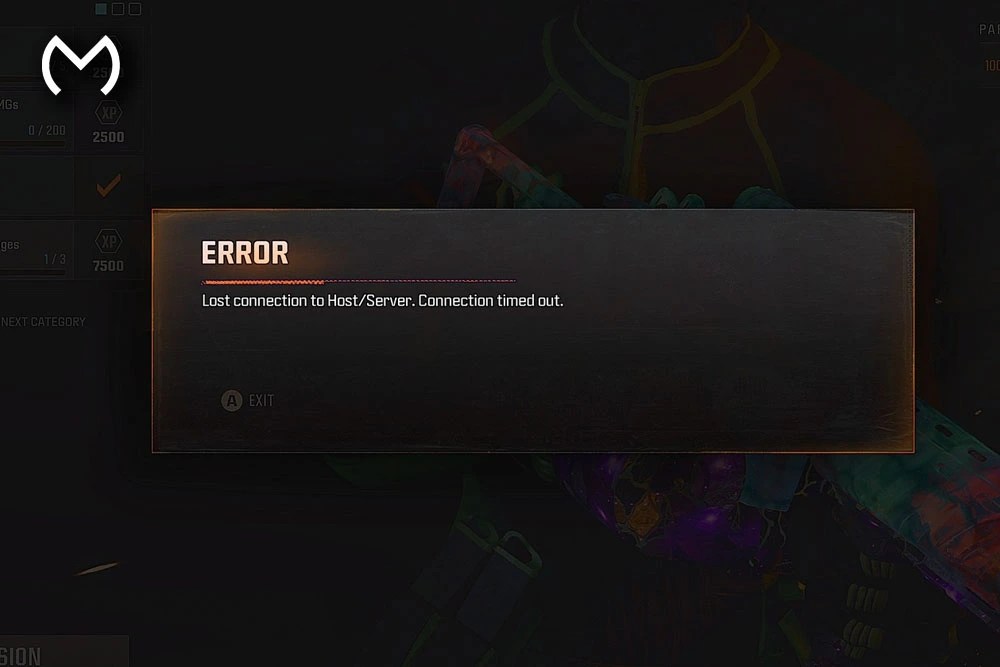
Getting disconnected mid-match in Black Ops 7 is incredibly frustrating. Whether you are deep into a Zombies run or climbing the leaderboard in multiplayer, sudden drops can disrupt your momentum. This error typically means that your game client lost its synchronization link to the match server.
When Black Ops 7 is unable to connect to host servers, standard restart attempts don’t always work. Here are the most effective fixes to resolve network desync and keep your connection rock-solid.
What to Try First
Before diving into advanced router configurations, rule out the most common external variables:
- Check Activision Server Status: Always check the official Activision Online Services page first. If the servers are experiencing high traffic, degradation, or maintenance, network adjustments on your end won’t solve the issue. Wait for a server-side fix.
- Power Cycle Your Router: Unplug your router and modem, wait about 30 seconds, and plug them back in. This clears out congested routing tables and refreshes your local connection to your Internet Service Provider (ISP).
- Limit Bandwidth-Heavy Applications: Ensure other devices on your home network aren’t actively downloading large updates, streaming 4K video, or running torrents while you play, as this can severely spike your latency and cause packet loss.
Fixing the “Unable to Connect to Host” Error in Black Ops 7
Yep, getting hit with the “unable to connect to host” error in Black Ops 7 is one of those moments that instantly kills the vibe. You’re ready to hop into a match, party up with friends, or grind your weapon levels — and boom, error screen.
All good though. This guide breaks down why it happens and exactly how to fix it step-by-step.
Start with the quick fixes first. Only move into router settings or port forwarding if the easier checks do not solve the problem.
Why Black Ops 7 Shows the “Unable to Connect to Host” Error
Before diving into fixes, it helps to know what’s actually going on behind the scenes. This error usually appears when something interrupts the connection between your device, Call of Duty services, and the lobby or party host.
The most common causes are:
- Server congestion or temporary outages
- NAT type conflicts
- Router restrictions or strict firewall settings
- Unstable Wi-Fi, high ping, or packet loss
- Game-version mismatches between players
- Activision or platform sign-in problems
- ISP routing issues
- Corrupted local network cache
- Damaged or incomplete game files
- VPN, proxy, school, hotel, or shared-network restrictions
Got it? Cool — now let’s fix it.
How to Fix “Unable to Connect to Host” in Black Ops 7
These solutions are listed from easiest to most advanced. Test the game after every step instead of changing several network settings together.
1. Restart Your Game and Device
Sounds basic, but honestly? This clears a large number of temporary connection hiccups.
Do this:
- Fully close Black Ops 7.
- Make sure it is not suspended in Quick Resume or Rest Mode.
- Restart your PC, PlayStation, or Xbox.
- Relaunch the game.
- Rejoin the party or playlist.
This forces the system to establish a new connection rather than trying to reuse a failed lobby session.
On Xbox, remove Black Ops 7 from Quick Resume before reopening it. On PlayStation, close the game completely instead of returning from Rest Mode.
2. Check Your Internet Stability
A stable connection matters more than an impressive headline download speed. Fast internet can still produce host errors when ping changes sharply or packets are being lost.
Check:
- Ping or latency
- Packet loss
- Download and upload stability
- Whether another device is streaming or downloading
- Whether the error happens only on Wi-Fi
Try the following:
- Run an internet connection test.
- Pause large downloads and cloud backups.
- Stop 4K video streaming on other devices.
- Move closer to the router if you must use Wi-Fi.
- Switch from Wi-Fi to Ethernet where possible.
- Restart the router if latency remains unstable.
There is no single download-speed number that guarantees a good session. BO7 uses relatively little bandwidth compared with streaming video, but unstable latency and packet loss can still break matchmaking or party connections.
3. Switch to a Wired Ethernet Connection
For many players, switching from Wi-Fi to a physical Ethernet cable yields an immediate improvement in stability. Wi-Fi signals can fluctuate due to walls, distance, or competing wireless devices. A wired connection provides a direct, consistent data stream, greatly minimizing mid-match drops.
4. Confirm Black Ops 7 Servers Are Online
Sometimes the issue is not on your side. If Call of Duty services are experiencing maintenance, login failures, or regional disruption, local router changes will not fix the problem.
Check the official Activision Online Services page before changing NAT or firewall settings.
Also check whether:
- PlayStation Network is online
- Xbox Network is online
- Steam is connected
- Battle.net services are available
- Other players in your region are reporting the same problem
When the official service page shows an outage, wait for the service to recover rather than repeatedly changing your network configuration.
5. Confirm Your Activision and Platform Sign-In
Black Ops 7 requires both the platform account and the linked Activision account to authenticate correctly.
Check that:
- You are signed into the correct PlayStation, Xbox, Steam, Battle.net, or Xbox PC account.
- The platform subscription required for online play is active where applicable.
- Your Activision account is linked to the correct platform profile.
- You have not recently changed the linked account.
- There is no login verification or account-security prompt waiting in a browser or email.
Sign out and back in when the game connects to the main menu but fails when joining parties or matches.
Do not repeatedly unlink and relink platform accounts as a first troubleshooting step. Account-link changes can have restrictions and should only be used when the current link is genuinely wrong.
6. Make Sure Your Game Is Updated
If you are running an older build, you may have trouble joining lobbies hosted by players who have already installed the latest update.
Double-check that:
- Black Ops 7 has updated completely.
- No content pack is paused.
- No background download is stuck.
- Your platform did not delay the update.
- Everyone in the party is using the same current game version.
Restart the launcher or console after the update finishes. Some patches are not fully applied until the game has been closed and reopened.
If you want to make up for lost time after a disconnect during active bonus windows, utilizing Call of Duty BO7 Double XP Codes For Sale can help you maximize your progression in the matches you finish. Additionally, if you are currently tackling seasonal content, make sure to check out our comprehensive Black Ops 7 Fallout Event Guide before jumping in.
7. Verify Game Files on PC
Damaged or incomplete game files can produce errors that look like network problems.
Steam
- Open Steam.
- Go to Library.
- Right-click Call of Duty.
- Select Properties.
- Open Installed Files.
- Select Verify integrity of game files.
Battle.net
- Open Battle.net.
- Select Call of Duty.
- Open the settings menu beside Play.
- Select Scan and Repair.
- Begin the scan.
Xbox App on PC
- Open the Xbox app.
- Select Call of Duty.
- Open Manage.
- Use the available repair or verification option.
- Restart the app after completion.
Allow the launcher to redownload anything it identifies as missing or corrupted.
8. Open Your NAT Type
An Open NAT type ensures smoother matchmaking and more stable lobby connections. To improve your NAT status, log into your router’s admin dashboard via your web browser:
- Try UPnP First: Enable UPnP (Universal Plug and Play). This feature allows Black Ops 7 to automatically request and open the specific network ports it needs.
- Use Port Forwarding if Needed: If UPnP doesn’t shift your NAT type away from Strict, you may need to manually configure Port Forwarding within your router settings for your specific platform’s Call of Duty ports.
9. Enable UPnP in Your Router Settings
UPnP, or Universal Plug and Play, helps the game request the ports it needs through the router.
Steps vary by router brand, but the general process is:
- Log into the router’s admin page.
- Locate NAT, Advanced Network, or UPnP settings.
- Turn existing manual port-forwarding rules off before testing.
- Enable UPnP.
- Save the settings.
- Restart the router and your gaming device.
- Check the NAT type again.
UPnP resolves NAT issues for many home networks without requiring multiple manual rules.
Do not use UPnP and manual port forwarding at the same time unless your router manufacturer specifically documents that setup. Overlapping rules can create conflicts.
10. Use Port Forwarding Only If UPnP Fails
If UPnP does not help, turn it off before creating manual forwarding rules. Give the PC or console a reserved local IP address so the rules continue pointing to the correct device.
Official Call of Duty ports include:
| Platform | TCP | UDP |
| Steam | 3074, 27015, 27036 | 3074, 27015, 27031–27036 |
| PC | 3074, 4000, 6112–6119, 20500, 20510, 27014–27050, 28960 | 3074, 3478, 4379–4380, 6112–6119, 20500, 20510, 27000–27031, 27036, 28960 |
| PlayStation | 3478–3480 | 3074, 3478–3479 |
| Xbox | 3074 | 88, 500, 3074, 3544, 4500 |
After applying the rules:
- Save the router configuration.
- Restart the router.
- Restart the PC or console.
- Open BO7 and check the NAT status.
- Test one party or Multiplayer match.
Forward ports only to the gaming device that needs them. Avoid placing a console or PC into a router DMZ unless you understand the security implications and have no safer alternative.
11. Check Firewall or Antivirus Restrictions
On PC, an overly aggressive firewall or security suite can block necessary game or launcher connections.
Try:
- Allowing Call of Duty through Windows Defender Firewall
- Allowing Steam, Battle.net, or Xbox services
- Whitelisting the game installation folder
- Checking whether Controlled Folder Access blocked the launcher
- Removing duplicate or expired firewall rules before adding new ones
You can temporarily pause third-party network protection to test whether it is causing the issue, but turn it back on immediately after the test.
Do not leave antivirus protection disabled as a permanent fix. Create a specific exception for the verified game and launcher instead.
12. Clear Your Local Network Cache
Consoles and PCs store temporary network information that may become stale or corrupted.
Full Router Power Cycle
- Close the game.
- Turn off the PC or console.
- Unplug the modem and router.
- Wait 60 seconds.
- Reconnect the modem first.
- Wait until it is fully online.
- Reconnect the router.
- Restart the gaming device.
Windows DNS Reset
Open Command Prompt as administrator and run:
ipconfig /flushdns
Then restart the PC.
You can also renew the local connection with:
ipconfig /release
ipconfig /renew
Only use these commands on a normal home connection. Managed school, company, or institutional networks may require administrator support.
13. Flush Your DNS Cache (PC)
If you are playing on PC, outdated routing data stored in your operating system can occasionally interfere with live server connections. To reset it, open the Command Prompt as an administrator and execute the following commands:
- ipconfig /flushdns
- netsh winsock reset
Platform-Specific Checks
PlayStation
- Open Settings → Network → Test Internet Connection.
- Confirm PlayStation Network sign-in.
- Check NAT Type.
- Restart the console and router.
- Restore licences if owned content is not loading correctly.
- Test with Ethernet.
Xbox
- Open Settings → General → Network settings.
- Run Test network connection.
- Run Test multiplayer connection.
- Check NAT Type.
- Clear the Alternate MAC Address only when normal restarts fail.
- Remove the game from Quick Resume.
Steam or Battle.net
- Restart the launcher.
- Confirm the launcher is online.
- Verify game files.
- Allow the launcher and game through the firewall.
- Disable VPN or proxy software.
- Run the launcher once as administrator for testing.
Test Whether the Party Host Is the Problem
Sometimes only one player in the party has the restrictive NAT or unstable route.
Try this:
- Leave the current party.
- Ask a different friend to host.
- Join their lobby.
- Test with crossplay on.
- Test with a smaller party.
- Ask the player with Strict NAT to restart or leave temporarily.
If everyone can play except when one specific person hosts, that player’s NAT, router, platform connection, or regional route is the likely cause.
Disabling crossplay can be used as a short diagnostic test, but it may reduce the available matchmaking pool. It is not a guaranteed permanent fix.
Need a Faster Way Back Into the Action?
If you’re troubleshooting this error because you’re trying to grind camos, level weapons, or chase rare unlocks, you’re not alone, connectivity issues can really slow down your progress.
The Black Ops 7 Hub keeps current game services, camos, accounts, and progression options in one place.
The official MitchCactus marketplace also covers available services across BO7 and other supported games.
Once the connection is stable, the Master Black Ops 7 Weapon XP Fast Ultimate Guide explains how to make better use of objective modes, Zombies, Endgame, and Double Weapon XP sessions.
Players returning to mastery progression can use the Black Ops 7 Dark Matter Guide to understand BO7’s released camo paths and the rewards that replaced older Dark Matter expectations.
After several stable matches, How To Check Your Black Ops 7 Stats can help confirm whether disconnects, interrupted matches, or recent gameplay changes affected your Combat Record.
Check out some of our Popular Black Ops 7 Services:


Extra Tips That Players Say Work
A few smaller changes are worth testing when the main steps do not solve the issue:
- Change from 2.4 GHz Wi-Fi to 5 GHz when close to the router.
- Use 2.4 GHz only when you need more range through walls.
- Close cloud backups, streams, and large downloads.
- Enable router QoS and prioritize the gaming device.
- Test a public DNS service if the ISP DNS is failing.
- Reboot network switches or mesh access points.
- Remove duplicate forwarding rules.
- Ask your ISP whether the connection uses CGNAT.
- Test at a different time if congestion happens only during peak hours.
If your ISP uses CGNAT, opening ports on your own router may not create an Open NAT. Ask whether a public IPv4 address is available.
Conclusion: You Can Fix the “Unable to Connect to Host” Error
There you go — a full breakdown of what causes Black Ops 7 to show the unable to connect to host error and the main ways to fix it.
Start with server status, a complete restart, the latest game version, Ethernet, and account sign-in. Move to NAT, UPnP, port forwarding, firewall, and DNS changes only when the basic checks fail.
Test after every step. That makes it easier to identify the real cause without creating new router or firewall conflicts.
FAQs
1. Does disconnecting wipe all my XP?
Base XP and weapon progress saved up to the last server sync are usually kept. Match-completion bonuses and challenge progress are typically lost.
2. How do I know if it’s my connection or Activision’s servers?
Check the Activision Online Services page first. If servers show as operational, the issue is on your end.
3. Can a Strict NAT stop me from joining friends?
Yes. Strict NAT players can only reliably connect to Open NAT players, which causes frequent party join failures in mixed groups.
Final Thoughts
While some server-side drops are completely out of your hands, the majority of “Lost Connection to Server Host” errors can be mitigated. Many connection drops can be traced to Wi‑Fi instability, NAT configuration, or local network issues. Going wired, enabling UPnP, and resetting network settings are three of the most effective troubleshooting steps.
Check out some of our most popular Boosting services: