Introduction
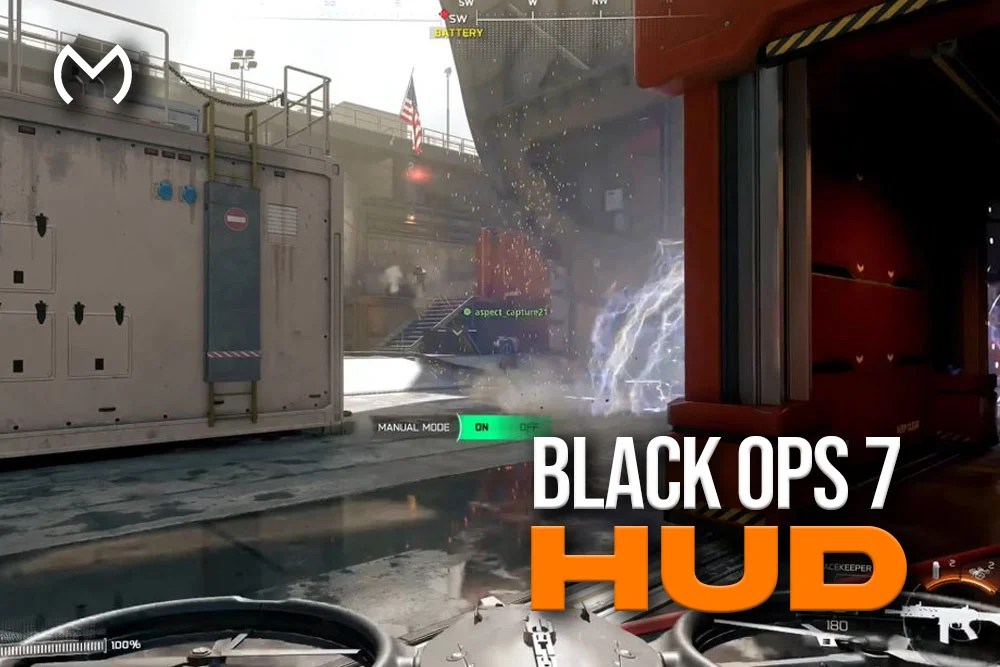
Hey, gamers! Yep, today we’re diving into Black Ops 7 HUD — that all-important heads-up display you see while playing. Whether you’re grinding Multiplayer, dominating Zombies, or just trying to get a cleaner view of your stats, the HUD is your in-game best friend.
No worries if you’ve been struggling with cluttered screens or confusing layouts. In this guide, we’ll break down everything about the HUD, from basic elements to advanced customization tips. All good — by the end, your HUD will feel perfect for your playstyle.
What is the Black Ops 7 HUD?
The HUD (Heads-Up Display) in Black Ops 7 is your in-game dashboard. Yep, it shows all the essential info without forcing you to pause the action.
HUD Basics & Key Elements
Here’s what you’ll typically see on the HUD:
- Health & Armor Bars – Know when to back off or push forward.
- Mini-Map / Radar – Tracks enemies and teammates in real time.
- Ammo Count – Never run dry in the middle of a fight.
- Objective Markers – Capture points, bombs, or mission objectives.
- Ability Cooldowns – For Specialists or special equipment.
- Score & Killfeed – Track progress and spot threats quickly.
Yep, every piece matters. Ignore one, and you might miss a key moment in a match.
Why It Matters for Gameplay
A clean, well-optimized HUD can make the difference between winning and getting respawned repeatedly. Your reaction time, situational awareness, and strategy all hinge on how easily you can read the HUD.
Fun Fact: Many top players tweak their HUD layouts until it feels almost like a sixth sense. Yep, customization is key.
Customizing Your HUD
Alright, now for the fun part — making the HUD your own.
Adjusting Layout & Size
- Move Elements Around: Drag and drop ammo counters, mini-maps, or ability timers to your preferred spots.
- Scale Size: Increase or shrink text and icons to fit your screen comfortably.
- Minimize Clutter: Hide non-essential elements for a cleaner view.
Pro Tip: Keep core info like health, ammo, and mini-map visible at all times. Everything else? Optional.
Color & Transparency Settings
- Color Customization: Some HUD elements let you change colors — useful for matching team colors or improving visibility.
- Transparency: Adjusting opacity helps keep your vision clear without losing important info.
- Contrast: Make sure your HUD stands out against different map backgrounds.
No worries if you feel overwhelmed — start simple, tweak little by little, and you’ll find what works best.
Tips for Competitive & Casual Play
Whether you’re a hardcore ranked player or just having fun, the HUD can help you level up your game.
- Focus on Essentials: Health, ammo, and objectives first. Everything else is bonus info.
- Map Awareness: Keep a mini-map near the corner of your screen for quick glances.
- Ability Tracking: Don’t waste specials — know cooldowns at a glance.
- Experiment: Different maps and modes might require different HUD setups.
Pro Tip: If you’re trying to get better at Zombies, make sure your HUD shows your teammates’ positions and equipment cooldowns. That info is gold for survival.
Common HUD Mistakes to Avoid
Yep, even seasoned players slip up. Here are some frequent mistakes:
- Cluttered HUD: Too many elements make it hard to see enemies or objectives.
- Too Small Icons: Hard to read at a glance — slows reaction time.
- Ignoring Customization: Sticking to defaults can put you at a disadvantage.
- Color Blindness Issues: Not adjusting colors for clarity can make tracking teammates tricky.
Fixing these is easy. Tweak, test, and don’t be afraid to adjust mid-game.
Advanced HUD Settings for Pros
Want that edge? Try these advanced tweaks:
- Dynamic HUD: Auto-hide less important info until you need it.
- Center Minimalist Mode: Keep only health, ammo, and core abilities front and center.
- Alert Indicators: Turn on pinged enemy markers or objective highlights.
- Custom Key Bindings: Make HUD elements interactable or clickable for fast access.
Yep, pro players live in this zone. It feels cleaner, faster, and sharper — almost like the game is responding to your instincts.
Community Insights & Fan Feedback
The Black Ops 7 community loves sharing HUD setups. Players often recommend:
- Stacking essential elements in corners for minimal obstruction.
- Using bright colors for objectives to avoid missing them.
- Syncing HUD layout with teammates for coordinated play.
If you want a natural source of inspiration, check out guides at Mitch Cactus — they cover HUD tips, loadouts, and more. Yep, the community insights can save hours of trial-and-error tweaking.
Conclusion
And there you have it — your complete guide to Black Ops 7 HUD! From basic elements and customization tips to advanced tweaks and community insights, a well-set HUD can seriously improve your gameplay. All good — tweak it, test it, and make the HUD work for you. With the right setup, you’ll spot enemies faster, track objectives better, and dominate every match.
FAQ Section
Q: Can I reset my HUD to default?
Yep! There’s always a “Reset HUD” option in settings if you want a fresh start.
Q: Does HUD customization affect competitive matches?
No worries — it’s purely visual. You’re not gaining extra stats, just better visibility.
Q: What’s the best HUD layout for Zombies?
Keep your teammates, ammo, and equipment visible. Adjust size and transparency for crowded maps.
Q: Can I share HUD presets with friends?
Yep, you can manually copy settings or use profile sharing in some setups. Makes teamwork smoother.