






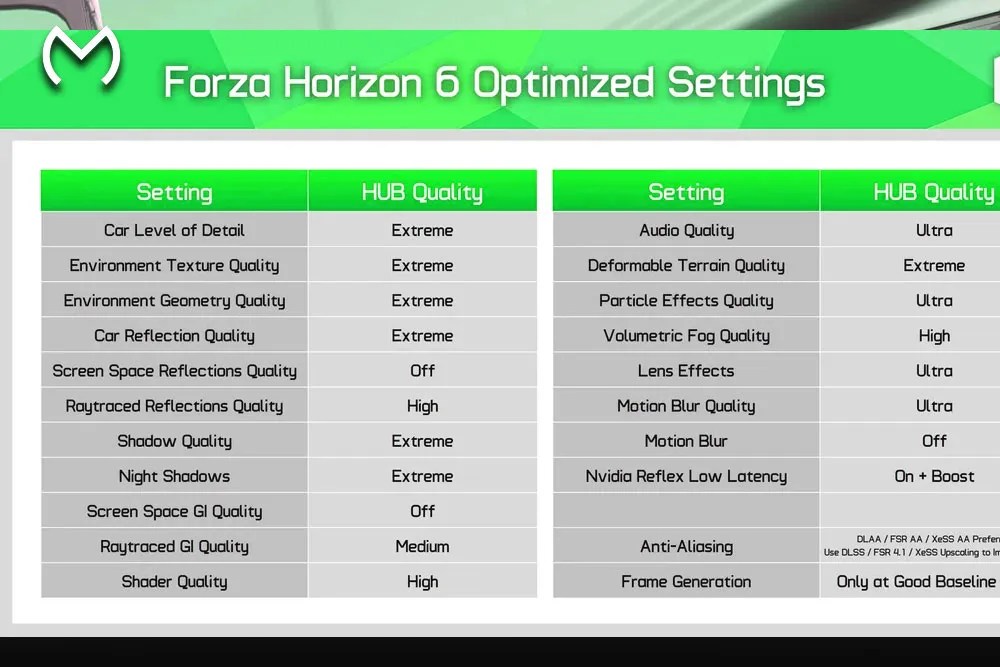
Despite Forza Horizon 6 being amazing when played on PC, maximizing everything isn’t always needed. In case you experience any problem in-game, including stuttering, lagging or others, it’s possible to make some adjustments in order to optimize your gameplay.
The following article will provide information about how to get high FPS and settings for low-end, mid-tier, high-end, ray-tracing and other types of settings.
Quick Answer: Best Forza Horizon 6 Settings for FPS
These settings should be used first to ensure FPS stability and prevent stuttering:
| Setting | Value |
|---|---|
| Resolution | 1920×1080 |
| VSync | Off |
| Motion Blur | Off |
| Raytraced Reflections | Off |
| Shadow Quality | Low |
| Volumetric Fog | Off |
| Particle Effects | Very Low |
| DLSS | Auto |
Ray Tracing technology should not be used in cases when you require smooth gameplay, since it will lower your FPS and create stuttering
Best Graphics Settings for Smooth Gameplay
If you want to maximize your gaming experience, don’t set all to max values. With enough VRAM installed in your graphics card, increase the texture quality settings to High/Ultra and decrease the ones that cause the most stress to your computer.
Below is the list to help you start:
- Texture Quality: High / Ultra
- Reflections: Screen Space High
- Global Illumination: Screen Space / Medium
- Ray Tracing: Off
- Motion Blur: Off
- DLSS / FSR / XeSS: Quality / Balanced
First turn off the Ray Tracing option and then move on to the next ones – Volumetric Fog, Shadows, and Reflections.
Best Settings for Low-End PCs
On entry-level PCs, focus on 1080p stability in the first place. You shouldn’t attempt to reach Ultra settings when the game becomes sluggish.
The settings must be adjusted to 1920×1080 resolution, Ray tracing turned off, Textures quality set to medium or high, shadows medium, geometry medium, volumetric fog off or low, particle effects low, motion blur off, and DLSS, FSR, or XeSS balanced.
For AMD GPUs, FSR is also worth testing because AMD says its upscaling technology can reconstruct high-quality visuals from lower-resolution frames and help deliver smoother frame rates.
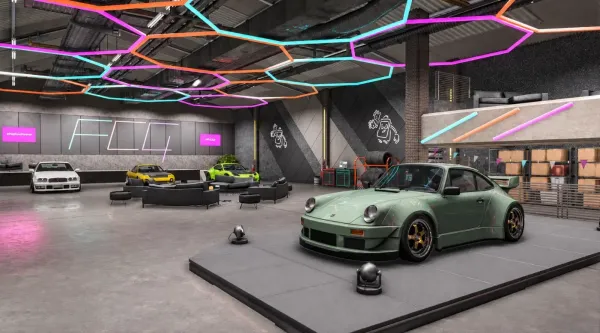
Lower Fog, Shadows, and Particles first. Smoother performance also makes longer races and credit grinding feel less frustrating, especially if you are working on your FH6 garage.
Optimum Configuration for Mid-tier Computers
With a frame rate of 60+ FPS at a high configuration setting, it’s sufficient for a regular gaming computer.
Resolution: 1080p/1440p; Texture Quality: High/Ultra; Shadows: High; Screen Space Reflections: High; Screen Space Global Illumination: High; Ray Tracing: Off; Motion Blur: Off; and DLSS, FSR, or XeSS Quality has to be utilized.
This configuration is not only efficient but also reliable for playing the game.
Ideal Configurations for Advanced Computers
If expensive computers can work in 1440p or 4K resolutions, it does not mean that all configurations need to be at maximum.
Use Ultra or Extreme for Textures and Geometry only in cases where the game does not perform slow. For Shadows use High or Ultra configuration, but remember about ray tracing because racing games need fast reactions more than extra lighting.
Ray Tracing: To Turn or Not to Turn?
The best way forward would be to turn off ray tracing for most gamers playing Forza Horizon 6.
There are some pros of using ray tracing such as improved lighting and reflections; however, the cons, which include reduced FPS, overshadow its pros. In addition, it puts more strain on the GPU having 8GB VRAM.
In this case, screen space reflection and global illumination should be used instead.
How to Fix Stuttering and FPS Drops
If Forza Horizon 6 keeps stuttering, lower the heavy settings first.
Try this order:
- Turn Ray Tracing Off
- Lower Shadow Quality
- Set Volumetric Fog to Low or Off
- Reduce Texture Quality if VRAM is full
- Use DLSS / FSR / XeSS Balanced
- Keep Motion Blur Off
- Update your GPU drivers
If FPS still jumps around, cap the frame rate. A locked 60 FPS often feels better than bouncing between higher and lower numbers.
Best Driving Settings for Better Control
Graphics settings help performance, but driving settings help consistency.
| Setting | Value |
| Driving Line | Braking Only |
| Traction Control | Off / On for beginners |
| Stability Control | Off |
| Steering | Normal for controller |
| Difficulty | Raise only if you win consistently |
| Motion Blur | Off |
Use Braking Only instead of the full racing line. Better control also helps when you are chasing limited rewards, Auction House deals, or trying to unlock rare cars through FH6 events.
Best Forza Horizon 6 Settings for Progression
For faster progression, choose settings that help you win consistently. Use the highest Drivatar difficulty you can beat often.
Keep Rewind on if you make frequent mistakes, use Braking Only for cleaner lines, and turn Traction Control on if powerful cars feel unstable. Smooth FPS helps your timing and corner exits.
Reward systems like FH6 Super Wheelspins can support progression, while extra Forza Horizon 6 credits can help you build your garage faster.
Final Thoughts
For the safest setup, turn ray tracing off, disable motion blur, lower fog and shadows, and use DLSS, FSR, or XeSS.
FAQs
How do I raise my FPS in Forza Horizon 5?
Dim shadows, turn off ray tracing and motion blur, and enable DLSS, FSR, or XeSS.
Which one is faster: 30 FPS or 60 FPS?
Of course not. The latter is always superior to the former.
How can I raise my FPS?
Decrease your graphics settings, install GPU drivers, use upscaling technologies (DLSS, FSR, or XeSS), and terminate useless applications.
Explore popular Forza Horizon 6 services for faster progression: