





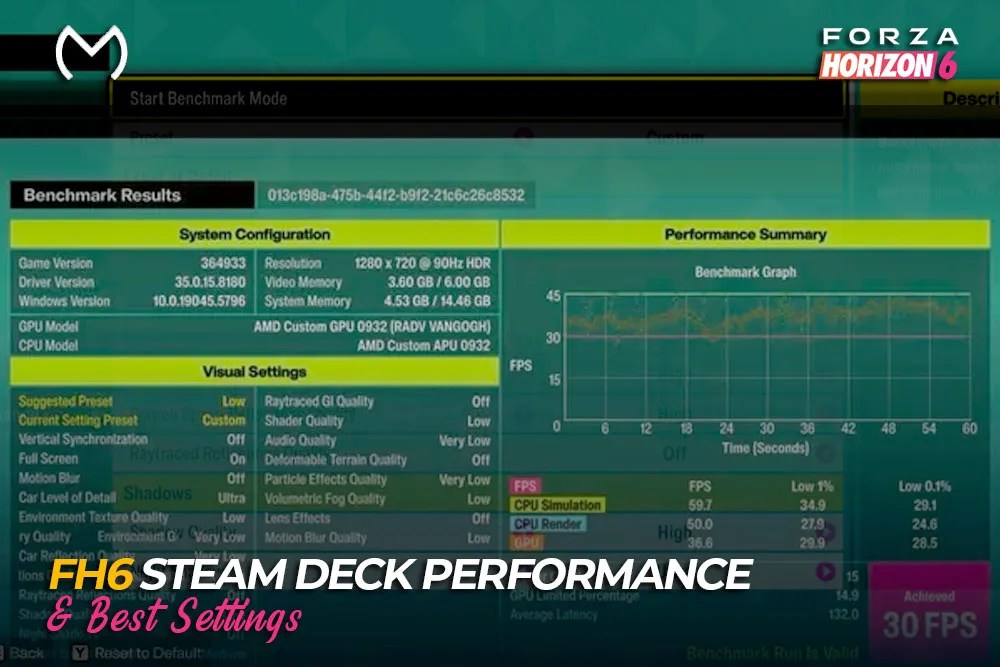
Forza Horizon 6 performs fine on Steam Deck in terms of racing, free roaming, and both online and offline modes, yet reaching a stable 30 FPS is the goal. It’s hard to have a stable 40 or even 60 FPS on a very busy road in Tokyo.
The preset “Low” works just fine. Some settings adjustments are needed to avoid framerate drops due to traffic and world streaming.
Best Forza Horizon 6 Steam Deck Settings
Use this configuration as your starting point:
| Setting | Recommended Value |
| Resolution | 1280×800 |
| Frame Rate Target | 30 FPS |
| In-Game FPS Cap | 45 FPS |
| SteamOS Frame Limit | 30 FPS |
| Graphics Preset | Low |
| Anti-Aliasing | TAA |
| TAA Sharpness | 0.6 |
| Ray-Traced Reflections | Off |
| Ray-Traced GI | Off |
| Motion Blur | Long or Off |
| Manual GPU Clock | 1600 MHz, optional |
| V-Sync | Off |
In general, the 30 FPS limitation in SteamOS ensures more stable frame rendering than without any limitation. If players detect additional lag in their input responses, then the in-game 30 FPS limit should be tried.
An optional GPU clock of 1600 MHz will increase consistency but will increase the amount of energy consumption. It should be turned off in case the battery time is more important.
Should You Use 30 FPS or 40 FPS?
A locked 30 FPS is the safest choice. Rural roads and smaller events may run faster, but Tokyo traffic and open-world loading create sharper drops.
A 40 FPS cap looks smoother when it holds. Repeated falls into the low 30s feel worse than a stable lock, especially while braking through technical sections.
Do not chase 60 FPS with Very Low settings. The image becomes flatter and softer, while the Deck still cannot hold 60 across the map.
TAA, FSR, or XeSS?
TAA is the best starting point at 1280×800. Cars, road markings, menus, and distant scenery stay cleaner on the Deck’s display.
FSR Balanced can recover performance in Tokyo, but it introduces more shimmer and softer details. Use it when TAA cannot keep the frame rate stable.
Ray tracing and volumetric fog remain the first expensive effects to reduce, just as they do in the best Forza Horizon 6 graphics settings for FPS.
Visual Quality or Maximum Stability?
The Low preset offers the best balance. Very Low removes useful shadows and surface detail without eliminating every city-area hitch.
For cleaner visuals, keep 1280×800, TAA, and Low settings. Motion Blur Long can make 30 FPS movement look smoother, while Off gives a sharper image.
For maximum stability in Tokyo, switch to 720p or FSR Balanced. Keep ray tracing off, lower environmental geometry, and disable volumetric fog before reducing textures.
How to Fix Stuttering and FPS Drops
Some stutter comes from shader compilation and open-world loading rather than one graphics setting. Test each change on the same Tokyo route.
Try these fixes in order:
- Let first-launch shader optimization finish.
- Restart after major graphics changes.
- Set the SteamOS frame limit to 30 FPS.
- Disable both ray-tracing options.
- Test 720p or FSR Balanced in Tokyo.
- Close Decky plugins and unnecessary overlays.
- Verify the game files after repeated crashes.
- Update SteamOS and the game before retesting.
If Steam Input changes profiles or the controls stop responding, these Forza Horizon 6 Steam controller fixes can resolve the conflict without disturbing a working graphics setup.
Battery Life, Heat, and Steam Deck OLED
The power consumption of a performance setting will range from 16-22W, with temperatures observed to range from 65-75°C, and the battery life is estimated to be around 2.5-3 hours.
Valve’s official Steam Deck OLED overview lists a 90Hz display, improved thermals, and 30–50% more battery life than the original LCD model. These hardware improvements help efficiency and responsiveness, but they do not guarantee that FH6 will hold 40 or 60 FPS in demanding areas.
To increase time spent gaming, you should not manually set the clock speed of your GPU, lower the screen brightness, and ensure that no 1080p rendering is done while docked.800 GPU。
Online, Offline, and Progression Advice
The game can continue offline after the first Xbox sign-in and shader setup. When reconnecting, select the correct cloud save before driving again.
A stable cap matters during longer weekly events, especially when several races stand between you and Forza Horizon 6 Festival Playlist rewards.
Players who mostly race in short handheld sessions may use an FH6 personal account progression option to spend less time repeating early unlocks before reaching their preferred cars and events.
Explore FH6 services for quicker handheld progression:

Final Takeaway
Forza Horizon 6 Steam Deck performance is best at a locked 30 FPS. Use 1280×800, Low settings, TAA, and ray tracing off, then reduce resolution only if Tokyo still feels uneven.
FAQs
Can Forza Horizon 6 be played on the Steam Deck?
Yes, but with only 30 fps, low graphics, TAA, and no ray tracing.
Is the Steam Deck discontinued?
No, the LCD panels are discontinued but the OLED panels are not.
What is Performance Mode on Forza Horizon 6?
Performance mode is the mode in which you lower your graphics for high FPS.
Is the Steam Deck a good PC?
Yes, since I can play many games, but few FPS games.