






Forza Horizon is Steam Deck Verified, and there is no doubt that it will run smoothly on Steam Deck. But the thing about the default preset for FH6 is that it will definitely be on low, with a maximum of 30 FPS. Similar to any other title, just a few adjustments will help you enjoy Forza Horizon 6 much more. Read our guide to learn all the necessary steps to take on the Steam Deck to get the best performance.
Fix the 720p Reset Bug First
The very first thing you should do is adjust the resolution. The game sets itself to run at a lower resolution by default. So, you’re going to see a resolution of 720p, instead of 1280×800, which is supported by Steam Deck.
Go to Settings, Display, then Resolution, and manually set it back to 1280×800. This happens after every settings reset, so make it a habit.
Steam Deck System Settings
Open the Quick Access Menu by pressing the three-dot button and set the following:
| Setting | Value |
| Framerate Limit | 45 |
| TDP Limit | 12W |
Disable the in-game frame-rate cap entirely. The Steam Deck’s system-level framerate limiter does it more effectively than the game’s engine can, resulting in smooth performance and reduced power consumption. If you wish to have unlimited performance and are using an active power source, you may disable the TDP cap, leaving the 45 FPS cap as it is.
In-Game Graphics Settings
Head into the Video tab first:
| Setting | Value |
| Resolution | 1280×800 |
| Frame Rate | Unlimited |
| Anti-Aliasing | TAA |
| Upscaling | AMD FSR 3.1 – Balanced |
A note on anti-aliasing: avoid XeSS entirely on Forza Horizon 6 Steam Deck. Testing showed it introduces heavy lag spikes on the Deck’s APU. TAA produces cleaner results without the performance hit.
Now open the Graphics and Performance tab:
| Setting | Value |
| Car Level of Detail | Low |
| Environment Texture Quality | Low |
| Environment Geometry Quality | Low |
| Car Reflection Quality | Medium |
| Screen Space Reflections | Off |
| Raytraced Reflections | Off |
| Shadow Quality | Low |
| Night Shadows | Off |
| Screen Space GI | Off |
| Shader Quality | Medium |
| Deformable Terrain | Off |
| Particle Effects | Low |
| Motion Blur | Low |
| Volumetric Fog | Off |
| Lens Effects | Medium |
Keep shadows on, even at Low. Turning them off entirely saves a few frames but the visual result is not worth it.
What to Expect
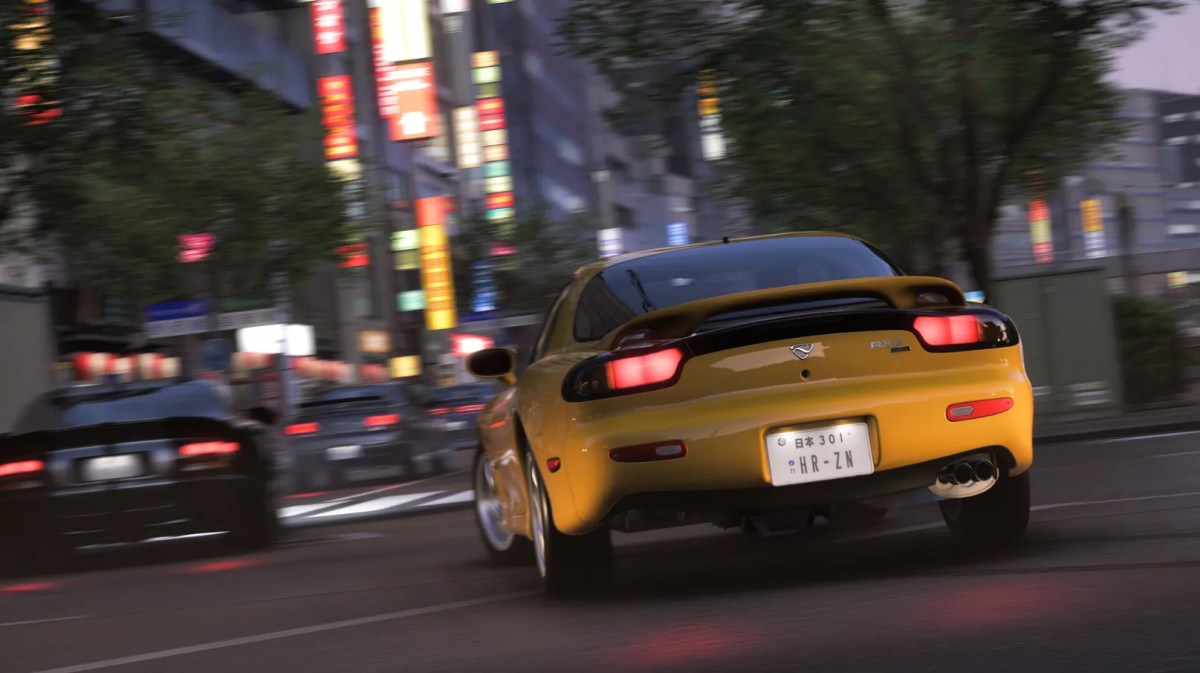
With these settings, expect an average frame rate between 30 and 45 FPS. Densely populated cities such as Tokyo, by night, will have some instances when the game drops below 30 FPS, but this won’t last for too long. Rural open roads will give you solid results in 45+ FPS. Should your gameplay suffer from heavy traffic, consider lowering the setting “World Car Detail” to Very Low.
However, 60 FPS frame rate just doesn’t seem achievable based on the technical limitations of the Steam Deck. Those looking to achieve better performance will find the guide, Forza Horizon 6 Performance Guide: How to Get 60 to 120 FPS, quite helpful for their needs.
Is Playing FH6 on Steam Deck Worth It?
Definitely. Japan is a fantastic open world that you can explore on your portable device. With all these settings optimized, FH6 turns into a great racing game that you can play on the go. If you want to find out how the Steam Deck experience stacks up against playing on Xbox or a full PC rig, check out the Forza Horizon 6 PC vs Console Comparison guide.
Check out some of our most popular Boosting services: