





The Black Ops 7 Direct X Error is one of the most annoying PC issues right now. It usually hits mid-match. Sometimes it hits on launch. Either way, it kills your session fast. The worst part is the randomness. You can have a stable PC. You can have good temps. Still, the Black Ops 7 Direct X Error pops up like it owns the place.
The good news is simple. Most fixes are quick and the only thing you need to do is to try them in the correct order.
What The Black Ops 7 Direct X Error Usually Means
Most players see DXGI crashes while there are also the “DirectX encountered an unrecoverable error”. Sometimes, there are error codes like 0x887A0005.
These crashes are often GPU-related. They can be driver related. They can also be stability related. The Black Ops 7 Direct X Error does not always mean your GPU is dying. It usually means something is unstable or corrupted. That is why basic cleanup works so often.
Step 1. Update Your GPU Driver The Right Way
Driver updates are the first move. Do not skip this.
You need to download the latest driver from NVIDIA or AMD. Only then, you can go for the clean installation as clean installs wipe bad leftovers. That matters when the Black Ops 7 Direct X Error is tied to corrupted files. After updating, restart your PC. Do not just close the installer. Restart fully.
Step 2. Clear Shader Cache
Shader cache issues are a big cause of DirectX crashing. This is a common fix for the Black Ops 7 Direct X Error.
NVIDIA shader cache can get corrupted. AMD shader cache can too. Clearing it forces the game to rebuild shaders.
Expect the first match to stutter a bit. That is normal. It should smooth out after. If your game crashes while compiling, clear it again. Then try one clean match.
Step 3. Verify Game Files
If you play on Steam, verify your files. If you play on Battle.net, use scan and repair.
This fixes missing or broken files. It also fixes bad updates. A lot of DirectX errors come from one damaged file. Verification takes minutes. It can save hours of guessing.
Step 4. Turn Off Overclocks And Stability Tweaks
This is the boring fix. It is also the most effective for many players.
Turn off GPU overclocks. Disable MSI Afterburner profiles. Remove undervolts too. Now check your RAM settings. If you use XMP or EXPO, disable it for testing. Many players report crashes stop after doing that.
Yes, it can reduce performance slightly. The trade is worth it if the Black Ops 7 Direct X Error disappears. Once stable, you can try re-enabling settings one at a time.
Step 5. Disable Overlays
Overlays love to mess with DirectX. Disable them for testing.
Turn off Discord overlay. Turn off GeForce Experience overlay. Disable Steam overlay too. If you use performance monitoring overlays, close them. That includes Rivatuner. The goal is to run the game clean. Overlays are not required to play.
Step 6. Run The Game As Admin
This fix is quick. It sometimes helps when the game cannot access required files. This can reduce permission issues that trigger the Black Ops 7 Direct X Error.
- Go to the BO7 exe. Right-click it. Then open Properties.
- Go to Compatibility. Check “Run this program as an administrator.”
- Apply it. Then launch the game normally.
Step 7. Force A DirectX Mode In Launch Options
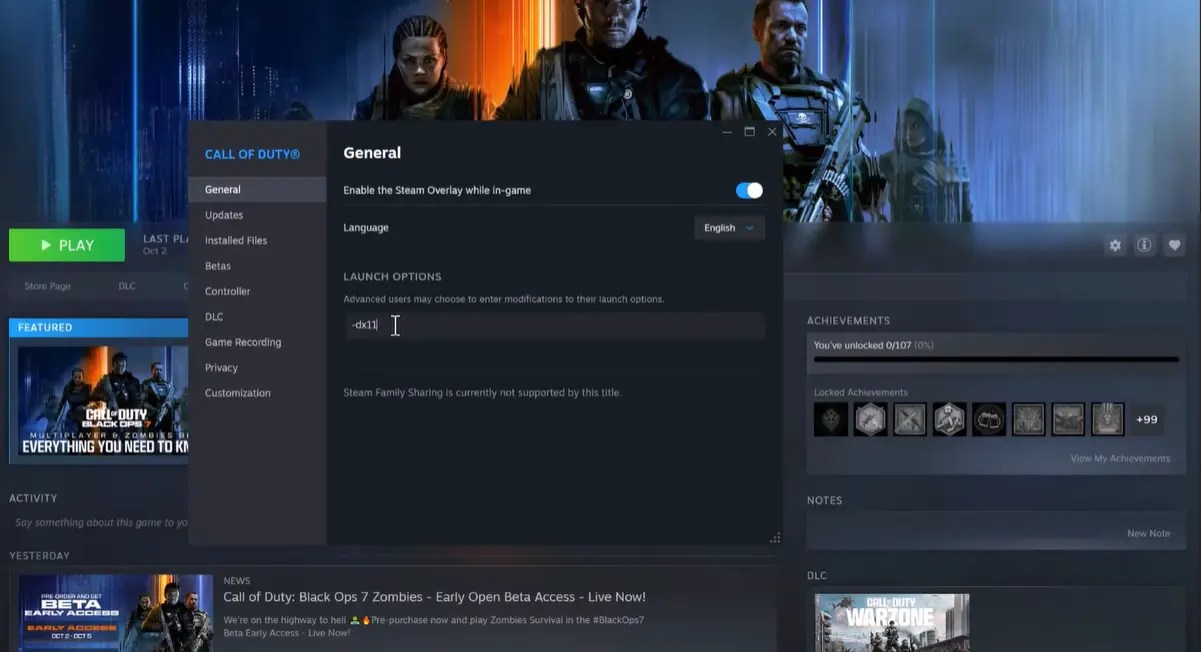
Sometimes the BO7 hates DX12 on your setup. Forcing a mode can stabilize things.
In Steam launch options, try one of these:
- -dx11
- -d3d11
- -dx12
Do not use all at once. Test one option at a time.
If DX11 stabilizes your game, stick with it. You might lose a little performance. You gain consistency.
Step 8. Repair Windows System Files
If your Windows image is slightly corrupted, DirectX can crash more often. This is not a magic fix. Still, it helps if the Black Ops 7 Direct X Error started after a Windows update.
- Open Command Prompt as Admin. Then run this:
- DISM /online /cleanup-image /restorehealth
- Let it finish. Then restart.
Step 9. Update BIOS If You Are On New Hardware
This is not for everyone. It is for stability issues on newer builds.
Some players report BIOS updates fix random crashing. This is more common on high-end CPUs. It is also common on newer boards.
If you update BIOS, follow your motherboard guide. Do not rush it.
If you are uncomfortable, skip this step.
Quick Fix Order That Works Best
If you want a simple plan, follow this order:
- Update GPU driver with clean install.
- Clear shader cache.
- Verify game files.
- Disable XMP and GPU overclock.
- Disable overlays.
- Force -d3d11 if crashes continue.
How To Tell If You Fixed It
You can test with a real session but do not test in the menu. You can also play one full match. Do not alt-tab or try to stream.
If the game is running stable after two sessions then it’s good. If it still crashes, you can move to the next step.
Conclusion
The Black Ops 7 Direct X Error feels random, but it usually comes from one of three things. Driver issues. Shader corruption. System instability. Start with clean installs and cache clears. Then remove overclocks. After that, test DX11 options. Once you find your fix, your game should stop crashing and stay consistent.
If you want to grind camos and levels without stressing in sweaty lobbies, you can buy BO7 Bot Lobbies at MitchCactus. Your matches are filled with bots, so you can drop 250 to 400 kills per lobby and finish challenges fast. You only need your Activision ID. Delivery can be under 30 minutes with express.