

































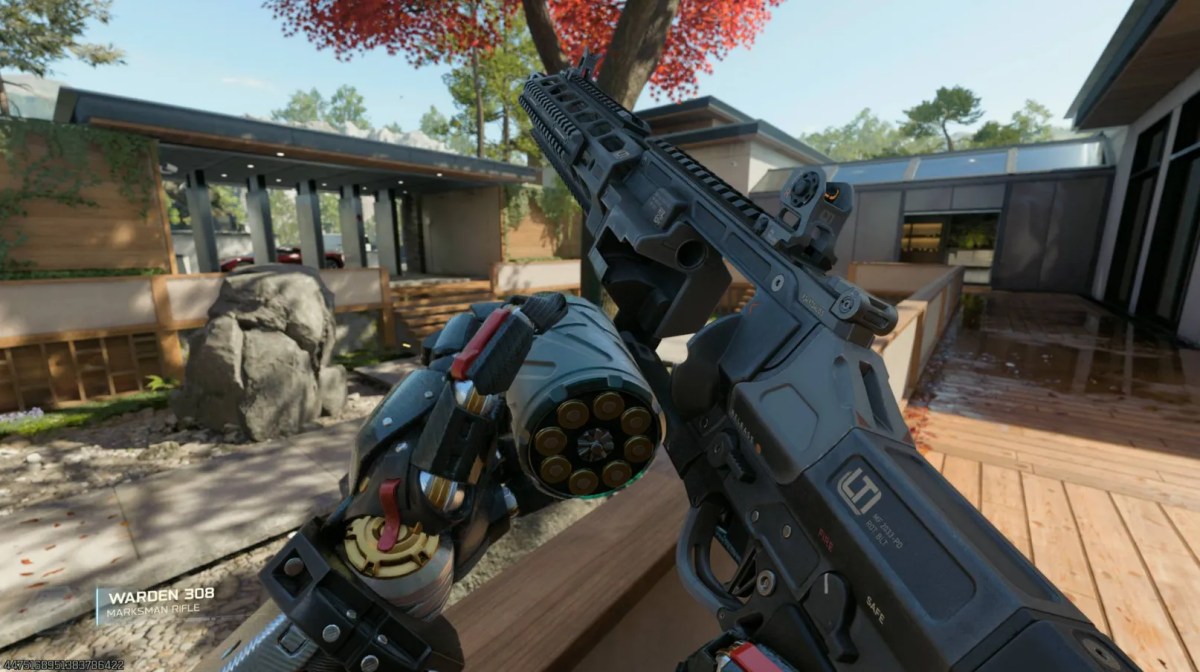
When jumping into Call of Duty: Black Ops 7 on PC, you’ll want to change your BO7 graphics settings so you’re getting high frame rates and low latency, not fighting stutters or sudden drops. Following is a full breakdown of the key settings to prioritise, why they matter, and how to balance visual quality against performance.
The settings below are designed as a competitive starting point. Your final choices should still depend on your resolution, graphics card, available VRAM, processor, and monitor refresh rate.
Best BO7 Graphics Settings at a Glance
| Setting | Recommended Value |
| Display Mode | Fullscreen Exclusive |
| Refresh Rate | Highest supported by your monitor |
| Display Resolution | Native resolution |
| V-Sync Gameplay | Off |
| V-Sync Menus | Off |
| Custom Frame Rate Limit | Custom |
| NVIDIA Reflex Low Latency | On or On + Boost |
| Graphics Preset | Custom |
| Render Resolution | 100 |
| Dynamic Resolution | Off |
| Upscaling/Sharpening | FidelityFX CAS or Quality upscaling |
| Frame Generation | Off for competitive play |
| Ray Tracing Reflections | Off |
| VRAM Scale Target | 70–80 |
| Texture Resolution | Low or Normal |
| Depth of Field | Off |
| Shadow Quality | Low or Very Low |
| Screen Space Reflections | Off |
| Field of View | 105–120 |
| World and Weapon Motion Blur | Off |
| Camera Movement | Least, 50% |
This setup aims to keep enemies clear, frame times stable, and unnecessary visual effects under control.
Display & Refresh Settings
First, how the game displays to the screen and the amount of overhead your system must control are affected by the display settings.
Display Mode: Fullscreen Exclusive
Select Fullscreen Exclusive as the Display Mode. This can reduce unnecessary desktop-composition overhead and gives the game direct control over the selected resolution and refresh rate.
Fullscreen Borderless remains useful for players who frequently switch between windows, but Fullscreen Exclusive is the safer competitive starting point when low latency matters most.
Players working through Multiplayer mastery can also review the existing Singularity Camo option without changing the performance settings below.
Screen Refresh Rate
Set the display refresh rate to the highest value your monitor supports.
For example:
- 60 Hz monitor: select 60 Hz
- 120 Hz monitor: select 120 Hz
- 144 Hz monitor: select 144 Hz
- 165 Hz monitor: select 165 Hz
- 240 Hz monitor: select 240 Hz
A higher refresh rate makes movement appear smoother when your PC can produce enough frames to take advantage of it.
Display Resolution
Select the native resolution of your monitor whenever the system can maintain stable performance:
- 1920 × 1080: Best for weaker PCs or maximum frame rates
- 2560 × 1440: Better clarity for stronger mid-range and high-end systems
- 3840 × 2160: Mainly suitable for powerful hardware or upscaling
Lowering the output resolution can increase FPS, but it may make distant targets harder to identify. Test Quality upscaling before dropping the display resolution below native.
V-Sync
Switch V-Sync Gameplay off. While V-Sync can remove visible tearing, it may add input latency and limit the frame rate.
Set V-Sync Menus off as well unless menu tearing bothers you. Menu power usage is better controlled through a separate frame-rate cap.
Custom Frame Rate Limits
Use separate frame limits rather than leaving every area uncapped:
- Gameplay Limit: Match your stable target or monitor refresh rate
- Menu Limit: 60 FPS
- Out-of-Focus Limit: 30 FPS
A reasonable cap can improve frame-time consistency and prevent the GPU from running unnecessarily hard in menus.
NVIDIA Reflex and AMD Anti-Lag
NVIDIA users should enable NVIDIA Reflex Low Latency.
Start with:
- On: Good default for most GeForce systems
- On + Boost: Test when the system is CPU-limited or GPU clock behaviour causes inconsistent latency
On + Boost may increase power use and temperatures, so do not assume it is automatically better on every PC.
NVIDIA’s official overview of Reflex Low Latency technology explains how it optimizes the rendering pipeline to improve responsiveness in competitive games.
AMD users can enable Radeon Anti-Lag when it is available and stable on their system. Do not combine multiple third-party latency tools without testing because overlapping controls may create inconsistent behaviour.
Graphics and Rendering Settings
These are some of the major BO7 graphics settings that affect the amount of work your GPU performs. The largest FPS increase can often be achieved by lowering quality here.
Graphics Preset: Custom
Set the Graphics Preset to Custom so each expensive option can be adjusted separately.
A Low preset may disable useful clarity settings, while a High preset can leave expensive shadows, reflections, and environmental effects enabled.
Render Resolution: 100
If your GPU can support it, set Render Resolution to 100, which means the game renders at the selected native resolution.
Lower the value only when you need more performance and do not have a better upscaling option available. A very low render percentage may make enemies and fine map details look blurry.
Dynamic Resolution: Off
Put Dynamic Resolution off for a consistent competitive image. It can help maintain a target frame rate, but resolution changes may make visibility and sharpness unpredictable during heavy fights.
Players on low-end hardware can still test it as a last resort when normal upscaling does not provide stable performance.
Upscaling and Sharpening
Use the option that suits your hardware:
- FidelityFX CAS: Best when the game already runs well at native resolution and you only need sharpening
- DLSS Quality: Useful for compatible NVIDIA RTX cards at 1440p or 4K
- FSR Quality: Useful for supported AMD and other compatible GPUs
- XeSS Quality: An alternative on supported hardware
CAS is not an upscaler by itself when Render Resolution remains at 100. It sharpens the native image.
Set CAS Strength around 80–90 first. A value of 100 can create halos or make edges look overly sharp on some displays.
Avoid Performance or Ultra Performance upscaling at 1080p unless the system cannot otherwise maintain playable FPS.
Frame Generation: Off for Competitive Multiplayer
Disable NVIDIA DLSS or AMD FSR Frame Generation when the lowest possible input latency is the priority.
Frame Generation can increase the displayed FPS, but the generated frames do not replace the need for a strong base frame rate. It may also introduce additional latency or visual artifacts around rapid movement and interface elements.
It can still be useful in Campaign or other less latency-sensitive modes when visual smoothness matters more than immediate response.
Ray Tracing Reflections: Off
Turn Ray Tracing Reflections off for competitive Multiplayer. They increase GPU load without offering a meaningful visibility advantage during normal gunfights.
VRAM Scale Target
Set VRAM Scale Target around:
- 70: Safer for GPUs with limited memory or background applications
- 80: Suitable when the game remains stable and VRAM usage stays controlled
Setting the target too high may increase texture-streaming pressure or cause stutters when other applications also use GPU memory.
Texture and Detail Settings
The original advice to place every texture setting on Very Low is not necessary for every system.
Use:
- Texture Resolution: Low for limited VRAM; Normal for 8GB or more when stable
- Texture Filter Anisotropic: Normal or High
- Depth of Field: Off
- Detail Quality: Low or Normal
- Particle Resolution: Very Low or Low
- Bullet Impacts: On
- Persistent Effects: Off
- Shader Quality: Medium
- Local Texture Streaming Quality: Low
- In-Game Video Quality: Low
Texture Resolution mainly affects VRAM use. Lowering it can reduce memory pressure, but it may not provide a large FPS increase when the graphics card already has enough VRAM.
Anisotropic filtering has a relatively small performance cost on modern hardware and helps surfaces remain clearer at an angle. Keeping it above Low may improve visibility without meaningfully reducing FPS.
Players interested in Zombies mastery can keep the existing Infestation Camo link while using the same general PC performance settings.
On-Demand Texture Streaming
Set On-Demand Texture Streaming to Minimal or the lowest available controlled option.
Texture streaming can improve asset quality, but it may also create background network use and disk activity. Players experiencing intermittent stutters should test a smaller cache or reduced streaming level.
Do not disable or change several cache settings at once. Restart the game after making major texture-streaming or shader changes and test the same map again.
Shadows, Lighting & Environment
Frequently ignored, these settings can be performance-heavy. They can be lowered with a limited impact on gameplay clarity.
Use:
- Shadow Quality: Low or Very Low
- Screen Space Shadows: Off
- Occlusion and Screen Space Lighting: Off
- Screen Space Reflections: Off
- Static Reflection Quality: Low
- Terrain Quality: Low or Medium
- Volumetric Quality: Low
- Deferred Physics Quality: Off or Low
- Weather Grid Volumes: Off or Low
- Water Quality: Off or lowest available option
Shadows can occasionally reveal movement, but the competitive benefit is usually not large enough to justify expensive high-quality shadow rendering.
Screen Space Reflections, volumetric effects, water detail, and advanced lighting mostly improve visual presentation rather than enemy visibility.
Players curious about one of the game’s major environments can still explore what the map Avalon means for the wider game.
Variable Rate Shading
Variable Rate Shading can improve performance by reducing shading work in less important parts of the frame.
Some players gain extra FPS with it enabled, while others notice reduced image clarity. Test it both ways:
- Keep it On when the FPS improvement is useful and enemies remain clear.
- Turn it Off when the image looks soft, unstable, or difficult to read.
This is one of the settings that should be judged on the actual GPU rather than copied universally.
View & Motion Settings
Although clarity and comfort have a more direct impact than raw FPS in this section, these options can still reduce distractions.
Players preparing storage before changing high-resolution assets can review the full install size for Black Ops 7.
Field of View
Set Field of View between 105 and 120.
A higher FOV gives more peripheral awareness, but enemies appear smaller and the system may have to render more of the environment.
A balanced starting point is:
- FOV: 110
- ADS Field of View: Affected
- Weapon Field of View: Wide or Normal
- Vehicle Field of View: Wide
Players on weaker CPUs or smaller monitors may prefer 100–105.
Motion Blur and Camera Movement
Use:
- World Motion Blur: Off
- Weapon Motion Blur: Off
- Depth of Field: Off
- First-Person Camera Movement: Least, 50%
- Third-Person Camera Movement: Least, 50%
Motion blur does not normally add meaningful input lag by itself, but it reduces visual clarity while turning or moving quickly. Turning it off makes targets easier to follow.
The old “Motion Reduction: Off” wording should not be confused with camera movement. Set camera movement to the lowest available amount to reduce unnecessary screen shake.
Best Settings for Low-End PCs
For systems close to the minimum requirements, start with:
- Resolution: 1920 × 1080
- Render Resolution: 100
- DLSS, FSR, or XeSS: Quality or Balanced
- Texture Resolution: Low
- Texture Filter: Normal
- Particle Resolution: Very Low
- Shadow Quality: Very Low
- Reflections: Off
- Volumetric Quality: Low
- Weather Grid Volumes: Off
- Water Quality: Off
- FOV: 100–105
- Frame Generation: Off initially
- Gameplay FPS Cap: A stable value the PC can maintain
A stable 90 FPS usually feels better than fluctuating between 90 and 150 FPS.
Check out some of our most popular Boosting services:


How to Reduce BO7 Stutters
Graphics quality is not the only cause of stuttering. Before lowering every setting, check the following:
- Install a stable graphics driver.
- Allow shader preloading to finish.
- Restart shader preloading after major driver or graphics changes.
- Keep the game on an SSD.
- Close unnecessary GPU-heavy background applications.
- Reduce VRAM Scale Target if memory usage remains near maximum.
- Lower Texture Resolution when the GPU has limited VRAM.
- Reduce On-Demand Texture Streaming.
- Check CPU and GPU frame times through in-game Telemetry.
- Restart the game after changing multiple rendering settings.
If GPU time is much higher than CPU time, lower resolution, shadows, particles, or upscaling quality.
If CPU time is higher, reducing graphics quality may provide little improvement. Lower the frame-rate target, close background tasks, and test a slightly lower FOV.
Test Settings With the Built-In Benchmark
Do not judge performance from one Multiplayer match because maps, players, effects, and network conditions constantly change.
Run the built-in benchmark after each major group of changes and compare:
- Average FPS
- 1% low FPS
- CPU frame time
- GPU frame time
- VRAM usage
- Visual clarity
Change one group at a time. For example, test the display settings first, then textures, followed by shadows and upscaling.
Current camos, progression options, and other Black Ops 7 services are organised through the main BO7 page.
BO7 Graphics Settings FAQs
What are the best BO7 settings for maximum FPS?
Use Fullscreen Exclusive, native refresh rate, gameplay V-Sync off, a Custom preset, low shadows, disabled reflections, low volumetrics, motion blur off, and Quality upscaling when native rendering is too demanding.
Should I use FidelityFX CAS or DLSS?
Use CAS at native resolution when the PC already delivers enough FPS. Use DLSS Quality on a supported RTX GPU when you need more performance, especially at 1440p or 4K.
Should Frame Generation be enabled?
Keep it off for competitive Multiplayer when low input latency matters most. It can be tested in Campaign when the base frame rate is already stable.
What should the VRAM Scale Target be?
Start around 70–80. Lower it if the game stutters while VRAM use is close to the graphics card’s limit.
Is Fullscreen Exclusive better than Borderless?
Fullscreen Exclusive is the safer starting point for the lowest latency and direct display control. Borderless is more convenient for frequent window switching.
Why does BO7 stutter after changing drivers?
The game may need to rebuild or preload shaders. Restart shader preloading, let it complete, and test again before lowering every quality setting.
Final Thoughts
You’ll boost your chances of enjoying fluid gameplay and a high frame rate in Black Ops 7 with these settings. Start with Fullscreen Exclusive, the correct refresh rate, V-Sync off, native resolution, a Custom preset, low shadows, disabled motion blur, and a stable frame-rate cap.
Keep CAS when native performance is already strong, or test Quality upscaling when the GPU needs help. The best configuration is not always the lowest possible preset; it is the one that delivers stable frame times, clear enemy visibility, and responsive controls on your own PC.