





Updated June 2026: This troubleshooting page now includes the latest official fixes for PC, Xbox, PS5, Steam, Battle.net, and PC Game Pass errors.
How to Fix Crashes or Game Freezes
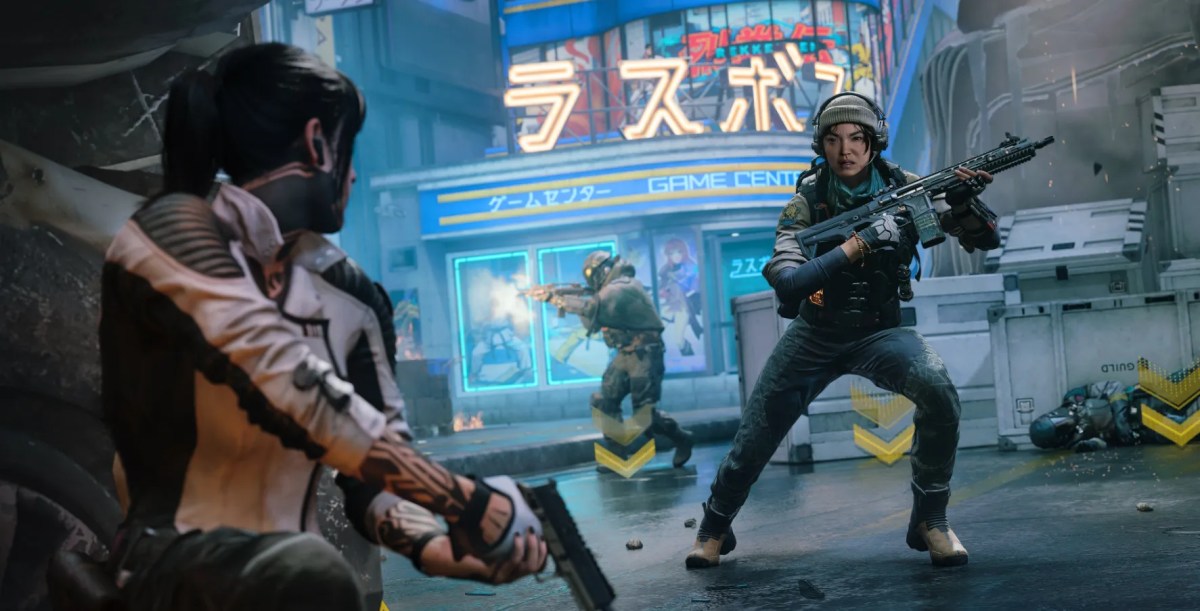
Black Ops 7 can crash during startup, freeze in a menu, close in the middle of a match, or send you back to the Xbox or PlayStation home screen. Corrupted files, incomplete updates, overloaded graphics settings, background software, console cache, storage problems, and temporary game bugs can all cause instability.
However, a connection problem is different from a local crash. Rubber-banding, packet loss, matchmaking errors, and sudden disconnects usually point to the network or game servers. If the application closes or stops responding completely, start with the game, system, files, drivers, and cache.
Use this order before reinstalling anything:
- Check the servers and known issues.
- Fully restart the game and device.
- Install game, system, and driver updates.
- Repair files or clear the correct cache.
- Reduce PC load and close conflicting software.
- Reinstall only after the other fixes fail.
| What Happens | Most Likely Area | First Step |
|---|---|---|
| Game closes to desktop or console home | Game files, update, driver, or system issue | Restart and check updates |
| Screen freezes but the device stays on | Cache, shader, graphics, or file issue | Restart and repair files |
| Lag, rubber-banding, or disconnect | Server or network problem | Check service status |
Xbox PC shows a 0x error | Xbox app installation | Use Windows Repair |
| Entire PC or console shuts down | Heat, power, or hardware issue | Stop playing and check ventilation |
Check Server Status and Your Internet Connection
Before changing device settings, check the Activision online-service page. If Black Ops 7 or your platform network has an outage, local troubleshooting will not fix the underlying problem.
If the servers are working but online matches still freeze or disconnect:
- Restart your router.
- Pause large downloads and streams.
- Use Ethernet instead of Wi-Fi where possible.
- Test another online game.
- Check for packet loss, not only download speed.
- Restart the game after the connection stabilizes.
A weak connection can cause a match to stop responding or remove you from a lobby. Still, it normally does not explain repeated startup crashes or the application closing on its own.
Restart the Game and System
Many times, the game only requires a complete reset.
Close Black Ops 7 instead of leaving it suspended. On Xbox, highlight the game, press the Menu button, and select Quit so it does not reopen through Quick Resume. On PS5, close the game from the switcher. PC players should also close Steam, Battle.net, or the Xbox app before reopening the launcher.
Next, restart the console or PC. This clears temporary processes that may have failed during an update, shader compilation, login, or match transition.
Update Black Ops 7
Your game may crash because the installed version does not match the current server build or misses a stability fix.
Check for updates through:
- PlayStation: Highlight the game, press Options, then select Check for Update.
- Xbox: Open My Games & Apps, select Manage, and check Updates.
- Steam: Open Downloads and confirm that Call of Duty has completed every update.
- Battle.net: Select Call of Duty, open the settings menu, and choose Check for Updates.
- Xbox app on PC: Open Library, select Call of Duty, and check Manage or Updates.
Also confirm that the update has finished installing. Launching while content packs or shared Call of Duty files remain incomplete can cause loading loops and crashes.
Keep Your System and Drivers Updated
System updates matter on Xbox, PS5, and PC because newer game builds may depend on current platform files.
On PC, install the latest stable Windows update and the GPU driver recommended for your hardware. Black Ops 7 requires DirectX 12, TPM 2.0, Secure Boot, a supported Intel or AMD processor, and an SSD with enough free space.
Do not assume the newest optional or preview driver will always work better. If crashes started immediately after a GPU update, check the driver release notes or reinstall the last stable recommended version.
Lower In-Game Graphics Settings on PC
High settings can push VRAM, RAM, CPU, or GPU usage beyond what the system can sustain during a busy match.
Start by lowering the overall graphics preset one level. Then test these changes:
- Reduce texture and shadow quality.
- Lower the VRAM target or scale.
- Cap the frame rate.
- Temporarily disable frame generation.
- Reduce the render resolution.
- Turn off on-demand texture streaming for testing.
- Restart shader preloading if the option appears in Graphics settings.
Change a few options at a time, then test the same mode or map. This makes it easier to identify whether one setting causes the freeze.
Close Overlays and Background Software on PC
Overlays and hardware-monitoring tools can conflict with the game or consume resources.
Before launching BO7, temporarily close:
- Discord overlay
- NVIDIA or AMD overlay
- Xbox Game Bar
- MSI Afterburner or RivaTuner
- RGB and peripheral software
- Recording or streaming apps
- Browser tabs using hardware acceleration
Also return CPU, GPU, and RAM overclocks to their default settings while testing. Unstable hardware tuning may only fail during demanding matches, even when other games appear stable.
Clear Cache
Cache clearing works differently on each platform.
Xbox
- Quit Black Ops 7 completely.
- Hold the console power button until it shuts down.
- Disconnect the power cable.
- Wait at least 30 seconds.
- Reconnect the cable and restart the console.
This full power cycle clears temporary system data without deleting installed games or progress.
PS5
- Turn off the console.
- Hold the power button until the second beep.
- Connect the controller through USB.
- Select Clear Cache and Rebuild Database.
- Try Clear System Software Cache first.
- Use Rebuild Database if the problem continues.
The official PlayStation crash steps also recommend checking the complete download, game update, system software, and installation before resetting the console.
PC
Restart Windows first. If BO7 still freezes, clear only temporary or shader-related files you understand. Avoid downloading third-party “cleaner” programs, since they may remove unrelated files or introduce another problem.
Repair Game Files on PC
Damaged or incomplete files can cause startup crashes, missing content, loading loops, or freezes after an update.
Steam
- Open Steam Library.
- Right-click Call of Duty.
- Select Properties.
- Open Installed Files.
- Choose Verify integrity of game files.
Steam compares the installation with its current server copy and downloads any missing or damaged files.
Battle.net
- Select Call of Duty.
- Open the cogwheel beside Play.
- Select Scan and Repair.
- Choose Begin Scan.
Xbox App or PC Game Pass
If you receive a 0x1, 0xfffffffe, or similar 0x error:
- Open Windows Settings.
- Select Apps, then Installed Apps.
- Find Call of Duty.
- Open Advanced Options.
- Select Terminate.
- Select Repair.
Activision currently recommends reinstalling if the error remains after the Windows Repair process.
Reset the BO7 Players Folder on PC
Activision has also tracked PC login timeouts that display a Quit to Desktop message.
Close the game, then open:
Documents > Call of Duty
Back up or rename the players folder before launching the game again. Black Ops 7 will create a fresh version, although you may need to restore settings such as keybinds afterward.
Do not remove any other folders. Check the current Activision issue tracker before using a workaround for a specific error.
Check Storage, Temperature, and Hardware
Keep enough free SSD space for updates, temporary files, and shader data. A nearly full drive can interrupt updates and create installation problems.
Also make sure the console or PC has clear airflow. If the entire device shuts down, displays temperature warnings, or becomes unusually hot, stop playing and let it cool. Repeated system shutdowns may indicate a cooling, power, or hardware problem rather than a game setting.
If several games crash on the same device, troubleshoot the console or PC itself.
Reinstall the Game
Reinstalling should remain the final software step because it takes time and may not solve a server, driver, hardware, or account problem.
Before reinstalling:
- Confirm the servers are online.
- Finish every pending system update.
- Repair or verify the current installation.
- Check that the correct content packs are selected.
- Make sure the installation drive has enough free space.
- Back up any local settings you need.
Then remove Call of Duty, restart the device, and download a clean copy.
Once Black Ops 7 Is Running Again
The main Black Ops 7 game section brings the current services, progression options, and supported content together.
Players who were troubleshooting an unavailable late-game mode can also check the steps for entering Endgame without finishing the full story.
For cosmetic content, the existing article covering where the BO7 Yeti Bundle appears remains available after the game launches normally.
Players returning on a new profile can compare the available ready-to-play account options without interrupting the troubleshooting steps above.
The Little Caesars promotion has ended, although the remaining Little Caesars reward-code options may still help players looking for its previously released cosmetics.
Check out some of our most popular Boosting services:


Final Thoughts
Start with the smallest fix and test the game after each step. A restart or completed update may solve a temporary freeze, while repeated PC errors often need file repair, driver checks, or a clean settings folder.
If BO7 is not the only game crashing, stop changing in-game settings and troubleshoot the console or PC itself. That distinction can save you from reinstalling a large game when the real issue sits elsewhere.
Black Ops 7 Crash and Freeze FAQs
Why does Black Ops 7 keep crashing?
Common causes include incomplete updates, corrupted files, outdated drivers, overloaded graphics settings, background overlays, low storage, temporary cache problems, overheating, and active game bugs.
How do I fix Black Ops 7 crashing on startup on PC?
Restart the launcher and PC, complete all updates, verify or repair the game files, close overlays, update the GPU driver, and check TPM 2.0 and Secure Boot. If login freezes continue, reset the players folder carefully.
How do I fix BO7 freezing on PS5?
Close the game, restart the PS5, check the game and system updates, and confirm the full installation. If the freeze remains, start Safe Mode and use Clear System Software Cache before trying Rebuild Database.
How do I stop Black Ops 7 from crashing on Xbox?
Quit the game fully, restart or power cycle the console, install updates, and confirm the game has enough storage. Xbox-on-PC users with a 0x error should repair the Call of Duty app through Windows Advanced Options.
Can bad internet make BO7 freeze?
It can make an online match lag, rubber-band, stop responding, or disconnect. However, repeated crashes to desktop or the console home screen usually point to the game, system, files, drivers, or hardware instead.
Why did BO7 start crashing after an update?
An update may leave damaged files, restart shader compilation, change graphics load, or conflict with an older driver. Restart the device, finish every download, repair the game files, and let shader preparation complete before testing again.
Should I reinstall Black Ops 7?
Reinstall only after updates, restarts, cache clearing, driver checks, and file repair fail. A reinstall cannot solve an active server outage and may not fix unstable hardware or overheating.
Where can I report a BO7 PC crash?
Use Activision’s BO7 bug-report or PC crash-report forms. Include the platform, error code, where the crash occurred, and the steps that reproduce it.