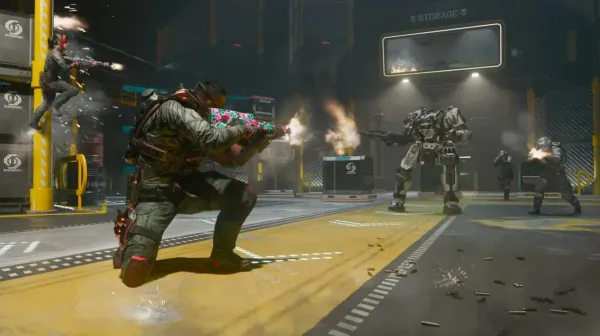


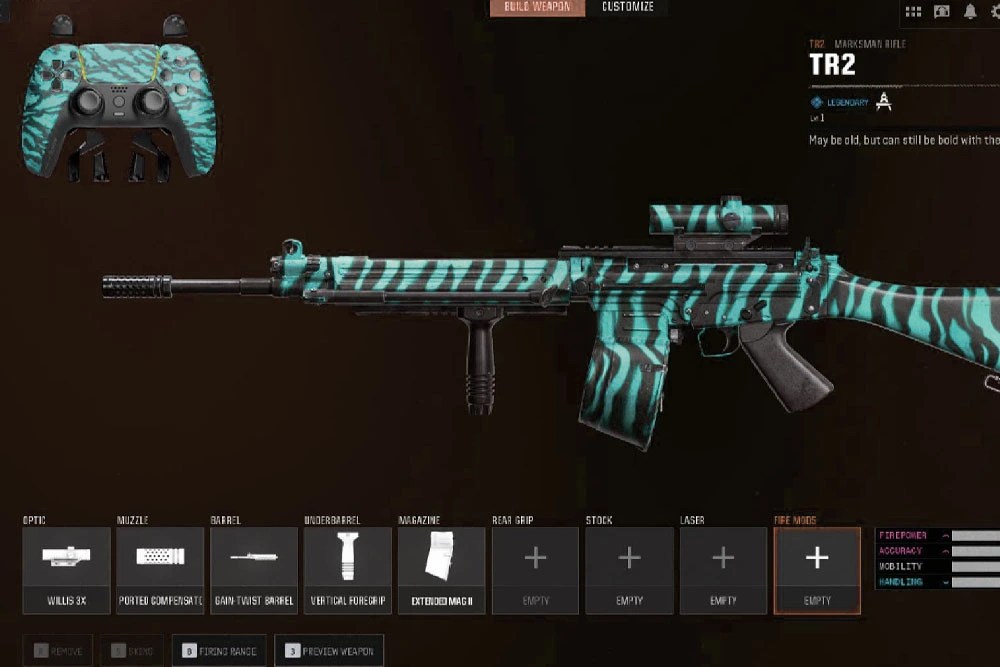
Custom weapon skins turn an ordinary firearm into a genuine piece of digital art. Beyond looking good, designing your own skins is a hands-on way to learn the texturing techniques professional studios use, and to flex your creative muscles along the way.
Modern multiplayer environments are locked down tight, so it’s worth knowing exactly where the line is before you get started. Here’s the full workflow for designing, texturing, and testing custom skins the safe way.
Safety First: Read Before You Start
Custom skins and modified textures should never be used in live public matches. Loading unauthorized files, texture injectors, or extraction tools on official Call of Duty servers will trigger anti-cheat detection and can result in an immediate, permanent account ban.
Only use this guide for:
- Creative design and personal projects
- Offline testing environments
- Private, modded servers
- Older titles with official Steam Workshop support
Stick to fully offline or disconnected environments when testing your files; it’s the only way to guarantee your account stays safe.
Step 1: Check Your Title’s Mod Support
Not every game in the series handles mods the same way, so confirm what’s allowed first:
- Legacy Titles: Entries like Black Ops 3 come with official Steam Workshop tools, giving you a legitimate space to build and share custom assets.
- Modern Titles: Current live-service games enforce strict file integrity checks. You should create custom textures for these in offline 3D software like Blender. They’re for viewing and design practice only, never for loading into live files.
Check official developer forums to confirm modding policies before downloading any third-party design tools.
Step 2: Build Your Skin
1. Gather References and Tools
Start by capturing clean reference shots of your weapon using in-game theater mode. Put together a mood board in Canva or Pinterest to plan out colors, camo patterns, and material finishes before you touch a texture file.
You’ll need two categories of software:
- 2D Texture Editors (Photoshop, GIMP): for painting your diffuse layers and adjusting masks and color.
- 3D Modeling Software (Blender): for wrapping your finished texture around the weapon model and checking how it reads under real-time lighting.
2. Understanding UV Mapping Basics
A 3D model can’t read a flat image on its own; it needs a UV map, which is essentially a flattened 2D blueprint of the weapon. Pull the weapon into Blender to see how this layout wraps around the receiver, barrel, magazine, and stock.
3. Designing the Texture
Export the weapon’s UV layout into your 2D editor. Build a clean, layered file: place the UV blueprint on top as a boundary guide, then paint your custom artwork on separate layers beneath it.
4. File Formats and Local Testing
Finally, hide the UV wireframe layer and save your image as a .PNG or .TGA to preserve detail. Load the texture into your title’s authorized offline asset suite or local mod path. Launch the game in forced offline mode or a local private match to check how your skin holds up under different lighting and to spot any visual stretching.
5. Packaging and Sharing
When you are satisfied with your creation, package your custom textures according to the title’s approved mod architecture. You can then upload your design to approved community galleries, dedicated modding forums, or the Steam Workshop.
Final Takeaways
Building custom textures gives you absolute control over your weapon designs. Just remember to test your files safely and build your asset layers neatly. If grinding through weapon levels manually sounds exhausting, check out premium Call of Duty Accounts for Sale to unlock established progression vectors seamlessly. For those preferring the live match grind, head over to our comprehensive Black Ops 6 weapon leveling guide to unlock base attachments and official camos faster.
If you are bouncing between franchises, you can also check out our strategy guide on How to Level Up Weapons in Battlefield 6 to optimize your loadouts there.
FAQs
1. Can I use custom skins in online multiplayer?
No. They are limited to offline modes, private matches, or modded servers. Using custom files in public matchmaking on modern titles will trigger anti-cheat bans.
2. What’s the difference between a UV map and a texture map?
The UV map is the flattened 2D blueprint of the 3D model, used as a template. The texture map is the actual artwork or color design painted onto that template.
Check out some of our most popular Boosting services: