







A pet delivery usually goes wrong for a simple reason: the wrong Roblox username, a missed mailbox claim, or expecting a server trade when the order actually uses mailbox delivery.
Before you buy Grow a Garden 2 pets, check the receiving account, confirm exactly which pet and variant you ordered, make sure you can access the game, and know how your selected delivery method works. Those few checks can prevent most avoidable delays.
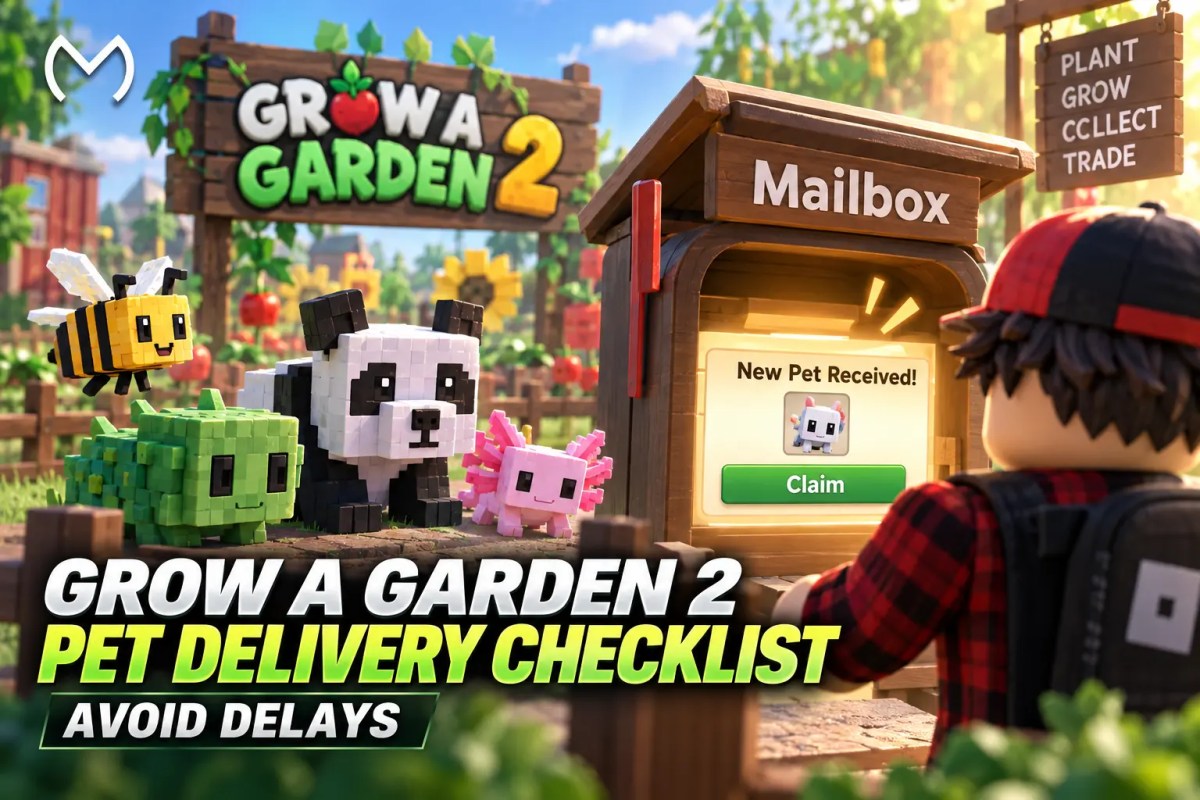
For the current MitchCactus service, there is also an important update: Grow a Garden 2 pets are now sent directly to your in-game mailbox after you provide your Roblox username. You do not currently need to join a private server or share your account login for this delivery method.
Check These Before Your Pet Is Sent
Most delivery problems can be prevented before the pet is ever sent. A quick check of your Roblox details, mailbox access, inventory and delivery method makes it much easier to spot a mistake early instead of trying to fix it after the order is already in progress.
| Check | What to Confirm | Why It Matters |
| Roblox username | Exact account username | Delivery has to reach the correct profile |
| Display name | Do not confuse it with your username | Roblox treats these as separate names |
| Pet order | Species, quantity and listed variant | Prevents claiming the wrong item without checking |
| Mailbox | You can access and claim incoming mail | Current delivery goes through the in-game mailbox |
| Inventory | You have room to manage the new pet | The pet needs to appear in your Pets inventory after claiming |
| Delivery method | Mailbox or direct/server transfer | Do not wait in a server when your order is being mailed |
| Account security | No password or 2SV details shared | A username is enough for the current mailbox process |
Enter Your Roblox Username Carefully
The first check happens before delivery starts.
Roblox has both a username and a Display Name, and they are not interchangeable. Display Names can also be shared by multiple players, while a username identifies the account.
Before submitting an order:
- Open your Roblox profile.
- Check the exact username attached to the account where you play Grow a Garden 2.
- Copy it rather than typing from memory.
- Check the spelling one more time before submitting.
A missing character, extra number or confusion between the Display Name and username can send the delivery process toward the wrong profile.
The current Grow a Garden 2 Pets page specifically asks for the Roblox username and states that pets are prepared and sent to that profile’s mailbox.
Do You Need to Join a Private Server?
Not for the current MitchCactus Grow a Garden 2 pet delivery flow.
This is worth checking because Roblox pet deliveries can use different methods. Some direct-transfer sellers arrange a private-server meeting and hand over or drop the pet in-game. Current Grow a Garden 2 systems also support gifting, dropping and mailbox transfers.
MitchCactus currently uses the mailbox route instead:
Purchase → provide username → pet is sent to the mailbox → claim it in-game.
So do not sit waiting in a private server unless your actual order instructions specifically tell you to join one.
If a future or alternative delivery does require a private server, Roblox allows server owners to control who can join and to create invite links. Your privacy settings can also affect whether a private-server invitation works.
Check Mailbox and Inventory Space
Delivery and equipping are two different steps.
Grow a Garden 2 keeps pets inside the player’s inventory, while equipped pet slots determine which companions are actively providing their abilities. A pet sitting in inventory does not need to be active immediately.
Before delivery, clean up anything obviously unnecessary and make sure you can access both:
- your Mailbox for the delivery;
- the Pets section of your inventory after claiming.
Current game documentation also reports that if a mailbox is full, mailed items are returned rather than simply being added anyway.
That makes mailbox space more important than immediately having an empty equipped-pet slot.
Once the pet is claimed, open the Pets inventory and verify it before changing your active lineup.
If you are deciding which companions are worth equipping rather than simply collecting, the Grow a Garden 2 Fall Harvest guide also covers newer pet abilities and how they fit into farming setups.
Verify the Pet Before You Move On
Do not stop at seeing a new icon appear.
Check the delivered item against the order you placed:
- correct pet name;
- correct quantity;
- correct listed size or variant, if applicable;
- correct receiving account.
For a mailbox delivery, there is no face-to-face trade window that needs to be accepted first. Your confirmation step is claiming the mail and checking the resulting pet in your inventory.
If you ever use a direct player transfer instead, treat that differently. Check what is being offered before completing the exchange or accepting the handoff.
That distinction prevents a common delivery mistake: following instructions from a completely different transfer method.
Keep Your Roblox Account Details Private
A normal Roblox pet delivery should not require you to hand over your Roblox password simply to receive an item through the mailbox.
The current MitchCactus GAG2 pet page only requires the username for delivery.
Roblox’s own account safety guidance says not to share your password, browser cookies, 2-Step Verification codes or backup codes with other people. Roblox also recommends enabling 2-Step Verification.
For this delivery method, keep the information limited to what is actually required:
Roblox username: yes.
Password: no.
2SV code: no.
Browser cookies or backup codes: no.
What to Do If the Pet Does Not Appear
Do not immediately place another order.
Work through the problem in this order:
1. Recheck the username used on the order.
Make sure the pet was prepared for the account you are currently logged into.
2. Check your in-game mailbox.
The current service sends pets there rather than requiring a server meetup.
3. Claim the mail and check your Pets inventory.
Do not look only at your currently equipped pets.
4. Check whether the mailbox was full.
A full mailbox can prevent a normal mail delivery from completing as expected.
5. Rejoin the game if necessary.
Refreshing the session can help you verify whether the claimed item has appeared correctly.
6. Check the delivery window before reporting a delay.
MitchCactus currently lists typical Grow a Garden 2 pet delivery at under 20 minutes after receiving the correct username.
If that window has passed and the username, mailbox and inventory all look correct, contact order support with the order details rather than changing account information or sending sensitive login credentials.
Final Delivery Check Before Ordering
Use this quick sequence because each step removes a different point of failure before the order starts. Following the checks in order helps confirm that the correct pet is being sent to the correct Roblox account, that your mailbox is ready to receive it, and that you can verify the delivery immediately afterward.
- Pick the exact pet you want.
- Confirm its listed quantity and variant.
- Copy your real Roblox username.
- Make sure you can access Grow a Garden 2.
- Check your mailbox and inventory.
- Complete the purchase.
- Submit the correct username.
- Wait for the mailbox delivery.
- Claim the pet.
- Verify it in the Pets inventory before treating the order as complete.
If you have already completed those checks and want to choose a pet directly, Explore Grow a Garden 2 Pets. The current catalog includes Legendary, Mythic and other available pets, with delivery through the in-game mailbox.
Check out some of our most popular Boosting services:

Conclusion
A smooth Grow a Garden 2 pet delivery depends more on preparation than complicated setup.
Use the exact Roblox username, know whether the order uses mailbox or server delivery, keep the receiving inventory accessible, and verify the pet after claiming it.
For the current MitchCactus method, the process is simpler than a private-server trade: your username identifies the receiving profile, the pet is sent through the in-game mailbox, and no Roblox password is required.
Checking those details before ordering is faster than trying to fix a preventable delivery problem afterward.
Frequently Asked Questions
How are Grow a Garden 2 pets delivered?
The current MitchCactus service sends purchased pets directly to the Grow a Garden 2 in-game mailbox after you provide the correct Roblox username.
Do I need to join a private server to receive my pet?
Not with the current MitchCactus mailbox delivery method. Private servers may be used for other direct-transfer methods, so follow the instructions attached to the specific order instead of assuming a server join is required.
Do I need to give my Roblox password for pet delivery?
No. The current service requires the Roblox username for mailbox delivery. Roblox advises users never to share passwords, cookies, 2SV codes or backup codes with other people.
What should I do if my Grow a Garden 2 pet does not appear?
Check the username used for the order, open the mailbox, verify the Pets inventory and make sure the mailbox was not full. If the listed delivery window has passed, contact order support with the order details.
Does my equipped pet lineup need an empty slot before delivery?
Not necessarily. Pet inventory and active pet slots are separate systems. The important delivery checks are that the pet can be claimed and appears in your Pets inventory; you can then decide which pet to equip.