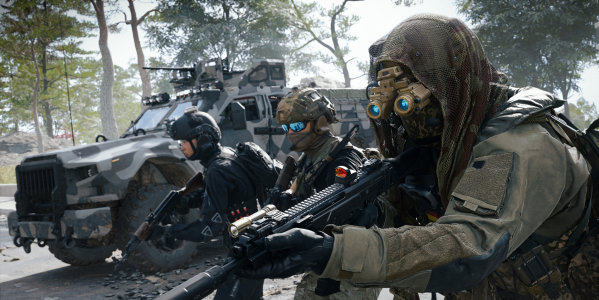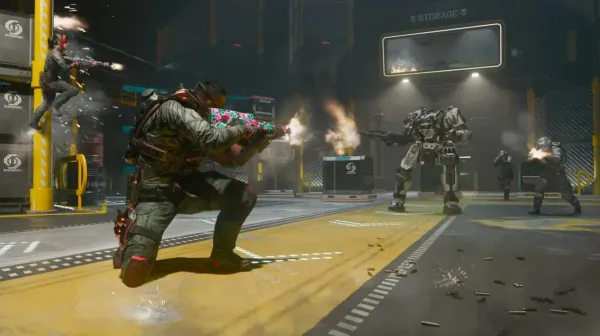




































When you want more consistent gunfights in Black Ops 7, you have to hear what is happening around you. Clear sound gives you a huge edge. You can track players more easily, predict incoming pushes, and react before an opponent appears on screen.
The best Black Ops 7 audio settings do not make every enemy perfectly audible, but they reduce unnecessary background noise and make footsteps, slides, reloads, doors, and directional movement easier to separate.
Best BO7 Audio Settings at a Glance
| Setting | Recommended Value |
| Master Game Volume | 70–80 |
| Gameplay Music Volume | 0 |
| Dialogue Volume | 20–40 |
| Effects Volume | 100 |
| Cinematic Music Volume | 0 |
| Audio Mix | Headphone Bass Boost or Treyarch |
| Speaker Output | Stereo |
| Enhanced Headphone Mode | Test On and Off |
| Mono Audio | Off |
| Reduce Tinnitus Sound | On |
| Hitmarker Preset | Default |
| Voice Chat Volume | 15–25 |
| Mute Game When Minimized | Off |
| Asymmetrical Hearing Compensation | Off unless needed |
Use this as a starting point. Headset tuning, platform processing, hearing differences, and personal comfort can change which mix sounds clearest.
Why Footstep Audio Matters
Footsteps can tell you what is happening even before you see the enemy. A small noise can reveal direction. A jump indicates movement. A slide tells you when someone is rushing. Reloads, doors, mantles, and equipment can expose a player who is trying to remain hidden.
With the best Black Ops 7 audio settings, you can catch these smaller sounds and use them to:
- Identify which side an enemy is approaching from
- Estimate whether someone is above or below you
- Prepare for a slide or wall-jump entry
- Avoid being surprised while reloading
- Hold an angle before the opponent appears
- Separate a real push from distant combat noise
Audio should support map knowledge rather than replace it. Knowing the nearby doors, stairs, walls, and elevation changes makes directional cues more useful.
Current Black Ops 7 camos, accounts, progression options, and other game services are organized through the Black Ops 7 main page.
Turn Off the Noise
Sometimes loud effects block the footsteps you should be listening to. The game throws explosions, music, announcer dialogue, Scorestreaks, and weapon fire at you, but not all of those sounds need equal volume.
Start with:
- Master Game Volume: 70–80
- Effects Volume: 100
- Dialogue Volume: 20–40
- Gameplay Music Volume: 0
- Cinematic Music Volume: 0
Keeping Effects Volume near maximum is important because footsteps, gunfire, slides, doors, and other gameplay cues sit inside that channel.
Master Volume should be loud enough to preserve quiet sounds without becoming uncomfortable. Raising it to 100 is not automatically better if explosions become tiring or force you to lower your headset volume.
Dialogue can stay above zero if you rely on announcer information, but reduce it when callouts overpower nearby movement. Music can be turned off because it adds atmosphere without helping you locate an enemy.
This mix makes battles cleaner while preserving the sounds that matter. Players who also want one of the game’s promotional cosmetics can check the existing Muller Milk Skin option separately.
Use the Right Headphone Audio Mix
The game provides multiple audio mixes, and the best one depends partly on your headset.
Two useful starting options are:
Headphone Bass Boost
This mix can make movement and lower-frequency environmental sounds more noticeable. It is a common competitive starting point, but on bass-heavy headphones it may also make explosions and Scorestreaks feel too dominant.
Treyarch Mix
The Treyarch mix provides a more balanced sound profile. It may work better when Headphone Bass Boost makes the match feel muddy or masks fine directional detail.
Test both in the same map and playlist. Do not judge the mix from one noisy gunfight. Listen for whether you can distinguish:
- Left from right
- Front from rear
- Upper floors from lower floors
- Walking from sliding
- Nearby movement from distant combat
Keep Speaker Output on Stereo when using normal headphones. Mono Audio should remain off because combining the left and right channels removes the directional separation needed to place footsteps accurately.
When switching from Multiplayer to Zombies, the existing Gobblegum guide covers a different type of loadout planning without changing your basic audio setup.
Should You Use Enhanced Headphone Mode?
Black Ops 7 supports Enhanced Headphone Mode, which applies spatial audio processing intended to improve directional positioning through headphones.
There are two main options:
- Universal Profile: Available without creating a personalized scan
- Personalized Profile: Uses a profile based on your physical hearing characteristics and selected headphone model
Enhanced Headphone Mode can improve front-to-back and vertical positioning for some players. For others, it may make the sound feel processed or less natural.
The best approach is to test it rather than assuming On or Off is universally superior:
- Enter a Private Match with the same headset and volume.
- Listen to movement with Enhanced Headphone Mode off.
- Enable the Universal Profile.
- Repeat the same routes and positions.
- Keep the option that makes direction and distance easier to judge.
When Enhanced Headphone Mode is enabled, avoid stacking another spatial-processing layer on top of it. Running Dolby Atmos, PS5 3D Audio, headset virtual surround, and Enhanced Headphone Mode together can create double processing and weaken positional accuracy.
Use one spatial system at a time.
Choose the Right Voice Chat Setup
The team’s voices can hide footsteps. Voice chat should remain active when communication matters, but it should not overpower gameplay audio.
Try:
- Voice Chat: On
- Voice Chat Volume: 15–25
- Microphone Level: Set through Test Microphone
- Microphone Mode: Push to Talk on PC, or a controlled Open Mic threshold
- Voice Chat Output Device: Your active headset
- Mute Game When Minimized: Off
A value around 15–25 normally keeps comms understandable without placing teammates at the same perceived volume as explosions and footsteps.
If one teammate is much louder than everyone else, adjust the individual player volume rather than reducing the entire voice channel until callouts become impossible to hear.
Mute Game When Minimized should stay off if you need to hear matchmaking, lobby, or match-start audio while using another window. It does not improve footstep clarity during active gameplay.
Players combining long sessions with weapon progression can use Double XP codes without changing these voice-chat settings.
Turn Off Audio Distraction Features
Some options can reduce directional clarity or create unnecessary fatigue.
Recommended:
- Mono Audio: Off
- Reduce Tinnitus Sound: On
- Asymmetrical Hearing Compensation: Off unless you need it
- Hitmarker Preset: Default
- Licensed Music: Off or muted when preferred
Mono Audio
Mono combines both channels. This may be useful for accessibility needs, but it removes the normal left-right separation used to locate footsteps. Keep it off for standard stereo headphones.
Reduce Tinnitus Sound
Turn this on to soften the sharp ringing created by flash and concussion effects. It reduces an unpleasant distraction without requiring you to lower all gameplay audio.
Asymmetrical Hearing Compensation
Leave this off when your hearing is balanced between both ears. Players with a known difference between their left and right hearing can use it to adjust each side separately.
Do not disable every audio enhancement blindly. Enhanced Headphone Mode, console spatial audio, and headset processing can each help on the right hardware. The important rule is to avoid stacking several competing spatial systems at once.
Use a Good Headset
A good headset matters even when the in-game settings are correct. It does not have to be expensive, but it should provide:
- Clear left-right separation
- Consistent mid and high frequencies
- Controlled bass
- Comfortable long-session volume
- A reliable wired or low-latency connection
- A proper seal around the ears, where applicable
Excessive bass can make explosions powerful but bury lighter movement sounds. If your headset software includes an equalizer, use small changes rather than extreme presets.
Footsteps are not limited to one narrow frequency band. The sound also includes surface type, distance, room reflections, and movement speed. Boosting only treble as high as possible can make the game harsh without improving direction.
If you switch to Zombies after Multiplayer, the article covering all relics in BO7 remains useful for its separate Cursed Mode progression.
Platform-Specific Audio Tips
PC
Choose the exact headset under Speakers/Headphones Game Sound Device rather than leaving the wrong Windows output selected.
Some players use Windows Loudness Equalization to reduce the gap between loud explosions and quieter sounds. Availability depends on the audio driver, and it can also make distance harder to judge. Test it before using it permanently.
Disable third-party virtual surround when Enhanced Headphone Mode is active.
PlayStation 5
PS5 Audio Focus can emphasize selected frequencies. The Boost High Pitch option may help footsteps on some headsets.
Do not combine PS5 3D Audio, headset virtual surround, and Enhanced Headphone Mode without testing. Begin with one spatial option and compare it against plain stereo.
Xbox
Xbox supports options such as Windows Sonic and Dolby Atmos. These can improve spatial awareness on compatible hardware, but they should be tested separately from Enhanced Headphone Mode.
When positioning feels vague, return to Stereo first and add one processing option at a time.
Test Audio in a Private Match
Changing settings during live matches makes comparison difficult because enemy routes and background noise constantly change.
Use this short test:
- Load a Private Match on a familiar map.
- Use the same headset and system volume.
- Ask another player to walk, sprint, slide, jump, and reload.
- Test sounds in front, behind, above, and below you.
- Change one setting only.
- Repeat the same route.
- Keep the setting that improves direction without destroying distance cues.
Volume, Audio Mix, and Enhanced Headphone Mode should be tested separately. Changing all three at once makes it impossible to identify which option helped.
Final Tip: Stay Calm and Listen
Plenty of players tense up during fights and stop processing the information around them. Stay calm. Pay attention to boots, jumps, slides, mantles, reloads, doors, equipment, and weapon swaps.
Do not immediately chase every sound. Decide whether the opponent is approaching, rotating away, changing elevation, or trying to pull you into a bad position.
You will gradually learn to read fights before they happen. The settings make the cues easier to hear, but repetition teaches you what each cue means.
Check out some of our most popular Boosting services:

Black Ops 7 Audio Settings FAQs
What is the best BO7 audio mix for footsteps?
Headphone Bass Boost is a useful starting point, while the Treyarch mix can sound cleaner on bass-heavy headsets. Test both using the same map and volume.
Should Enhanced Headphone Mode be on or off?
Test both. It can improve directional positioning for some headset and hearing combinations, while other players prefer unprocessed stereo. Avoid using it alongside another virtual-surround layer.
Should Mono Audio be enabled?
Keep Mono Audio off for normal competitive headphone use because stereo separation helps locate left-right movement. Enable it only when it serves a specific accessibility need.
What volume makes footsteps louder in Black Ops 7?
Set Effects Volume near 100, lower music to 0, reduce dialogue, and keep Master Volume at a comfortable level around 70–80.
Should Reduce Tinnitus Sound be enabled?
Yes. It softens the sharp ringing from flash and concussion effects and can reduce audio fatigue during longer sessions.
Why can’t I hear footsteps clearly?
Possible causes include an unsuitable audio mix, loud voice chat, excessive bass, Mono Audio, multiple spatial processors running together, the wrong output device, map noise, or an opponent using quieter movement options.
Final Thoughts
Using these Black Ops 7 audio settings can make footsteps, slides, reloads, and other movement cues easier to separate from music and background noise.
Keep Effects Volume high, remove unnecessary music, balance voice chat, leave Mono Audio off, and test the Treyarch and Headphone Bass Boost mixes. Enhanced Headphone Mode may improve directional accuracy, but compare it with regular stereo on your own headset before deciding.
The strongest setup is the one that lets you judge direction and distance without making every explosion painfully loud.