

























Black Ops 7 HUD Guide: Settings, Layouts, and Customization
The Black Ops 7 HUD can be adjusted separately for Multiplayer, Zombies, and Co-Op Campaign. You can choose mode-specific presets, control widget visibility, change colors, and simplify the information shown on screen.
A useful setup keeps the minimap, ammo, objectives, and mode-specific details easy to read without blocking important sightlines.
What Is the Black Ops 7 HUD?
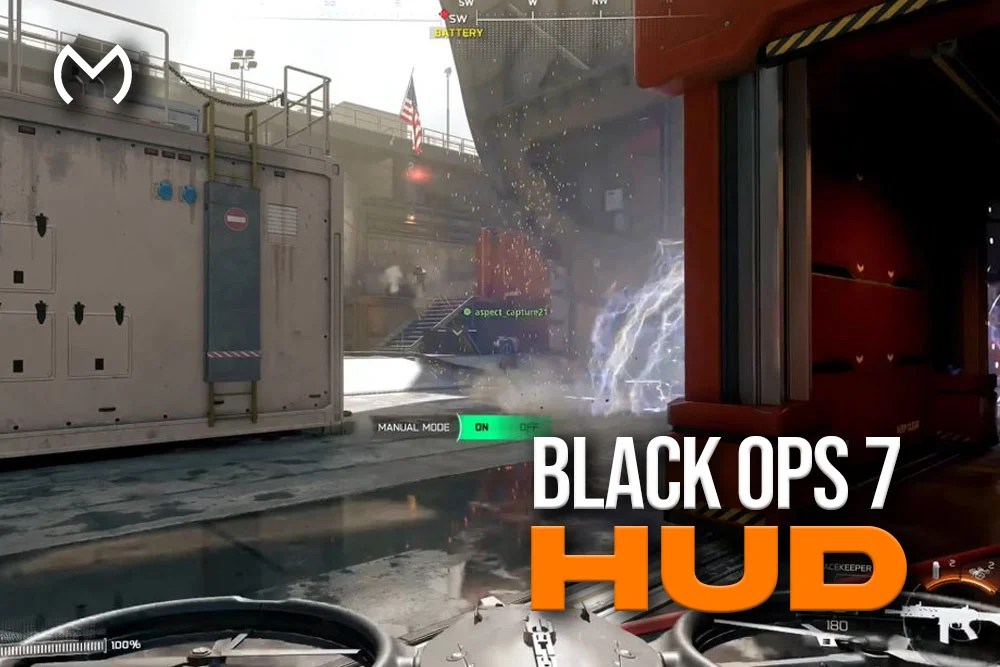
The HUD, or Heads-Up Display, is the information layer shown during a match.
HUD Basics and Key Elements
| Element | What It Shows |
|---|---|
| Minimap and compass | Teammates, objectives, pings, and revealed enemy information |
| Health and armor | Current survivability in modes that use those systems |
| Ammo and loadout | Magazine, reserve ammo, weapon, and equipment |
| Objective markers | Hardpoints, bombs, missions, or other mode goals |
| Equipment and Field Upgrade | Tactical, lethal, and rechargeable equipment |
| Score and feed | Match score, eliminations, notifications, and Scorestreak progress |
| Zombies widgets | Round, squad, perks, GobbleGums, health bars, and damage numbers |
Armor is not a universal standard Multiplayer element, while BO7 uses equipment and Field Upgrades rather than the Specialist cooldowns mentioned in the old article.
Why HUD Settings Matter
HUD settings do not increase damage or player stats. Instead, they make information easier to process during a fight, rotation, or objective change.
How to Open the BO7 HUD Settings
- Enter Multiplayer, Zombies, or Co-Op Campaign.
- Open Career > Customize > HUD Presets for that mode.
- Choose a layout and, where available, a HUD theme.
- Open Settings > Interface > Gameplay HUD to manage individual widgets.
- Use Interface > Readability for color and visual-clarity options.
Each mode can use its own preset, so a Zombies change does not automatically replace your Multiplayer layout.
Customizing Your HUD
Choose a Layout Preset
BO7 uses preset locations for HUD sections rather than letting you drag every counter anywhere on screen. Pick the layout closest to your preference, then decide which widgets remain visible.
For Multiplayer, keep the minimap, ammo, and objective information available. In Zombies, round number, perks, squad status, GobbleGums, and loadout information matter more.
The Black Ops 7 main hub keeps the game’s progression, modes, and available services together after you finish adjusting the interface.
Adjust Visibility Without Removing Useful Information
A minimalist HUD reduces clutter, but hiding the minimap, objectives, squad widget, or ammo can slow your decisions. Change one group of settings, play a match, and restore anything you repeatedly miss.
Color, Text, and Crosshair Settings
BO7 includes text-size support, HUD color customization, and crosshair controls. Choose colors that clearly separate friendly, enemy, neutral, and objective information against different map backgrounds.
The official BO7 accessibility overview also covers High Contrast support and Advanced Motion Control visual anchors.
Recommended HUD Setup for Multiplayer
Keep these elements visible:
- Minimap and compass
- Ammo and loadout information
- Objective markers
- Equipment and Field Upgrade status
- Scorestreak progress
- The score and elimination feed
Reduce medals or repeated notifications if they cover the center of the screen. However, challenge updates remain useful while tracking a camo or event objective.
Players following the Black Ops 7 Dark Matter Guide may prefer to keep challenge notifications visible while monitoring mastery progress.
Recommended Classic-Style HUD for Zombies
BO7 offers dedicated Zombies presets and the Aetherium theme. For a cleaner legacy-style setup:
- Select Aetherium under Zombies HUD Presets
- Choose the Classic layout
- Keep Loadout Information, GobbleGums, Squad Widget, Round Numbers, and Perks on
- Turn off optional medals, toasts, score feed, or elimination feed
- Disable Zombie Healthbars and Damage Numbers only if you prefer a traditional look
The official Zombies HUD customization notes provide the complete visibility list.
Advanced Accessibility Settings
Advanced Motion Control can add a horizontal line, dot grid, border, or vignette as a visual anchor. You can adjust size, opacity, thickness, and color without changing gameplay.
Use these controls for comfort and clarity rather than copying another player’s exact setup.
Common HUD Mistakes to Avoid
- Using one preset for every mode
- Removing core information only for a cleaner screen
- Making friendly and enemy colors too similar
- Keeping every medal and notification visible
- Copying a Zombies setup into Multiplayer
- Changing several options at once
Objective players need clear markers, aggressive players need quick minimap reads, and Zombies squads need round, perk, and teammate information.
HUD Settings and Performance Tracking
The HUD shows immediate match information, but it does not replace the Combat Record. How To Check Your Black Ops 7 Stats explains where to review Elim/D, Win/Loss, Score Per Minute, recent matches, and weapon use.
Test any new HUD setup across several matches. Better readability can support more consistent decisions, but it cannot guarantee better statistics.
Check out some of our most popular Boosting services:


Community Insights and Further BO7 Options
Community layouts can provide ideas, especially for Zombies themes or minimalist Multiplayer screens. Still, screen size, viewing distance, platform, and role affect what feels readable.
The existing MitchCactus site remains available for players browsing more BO7 articles and progression options.
Conclusion
The best Black Ops 7 HUD keeps essential information readable without filling the screen with unnecessary notifications. Use separate presets for each mode, keep core Multiplayer information visible, and build a Zombies layout around round, perk, squad, and GobbleGum tracking.
Start with a preset, change a few options at a time, and test the result before removing more elements.
Black Ops 7 HUD FAQs
Can you freely move HUD elements in Black Ops 7?
BO7 mainly uses preset layouts with fixed positions for each section. You can then control the visibility of many widgets through Gameplay HUD settings.
Are HUD presets separate for Multiplayer and Zombies?
Yes. Multiplayer, Zombies, and Co-Op Campaign can use separate HUD presets.
What is the best Zombies HUD layout?
The Classic layout with the Aetherium theme is a strong starting point. Keep round, perks, squad, GobbleGums, and loadout information visible.
Can you change HUD and crosshair colors?
Yes. BO7 includes color customization and crosshair settings for better readability.
Does HUD customization affect player stats?
No. It changes how information appears, not damage, movement, aim assist, or progression.