






Forza Horizon 6 accessibility features support vision, hearing, motor control, reaction time, and menu readability. Options include High Contrast Mode, AutoDrive, Offline Game Speed, Car Proximity Radar, Screen Reader, custom controls, and flexible driving assists.
Start with the option that removes your biggest barrier, then add only what improves comfort.
Best Accessibility Features at a Glance
| Player need | Best starting options |
| Low vision | High Contrast, larger text, color-blind filters |
| Slower reactions | Offline Game Speed, Rewind, Tourist Drivatar |
| Reduced motor input | AutoDrive, Auto-Steering, Assisted Braking |
| Nearby-car awareness | Car Proximity Radar and audio cues |
| Hearing support | Subtitles, keyword highlighting, audio sliders |
| Custom inputs | Remapping, layouts, dead-zone controls |
Where to Find the Settings
FH6 spreads its accessibility tools across several menus.
- Open the Pause Menu and select Settings.
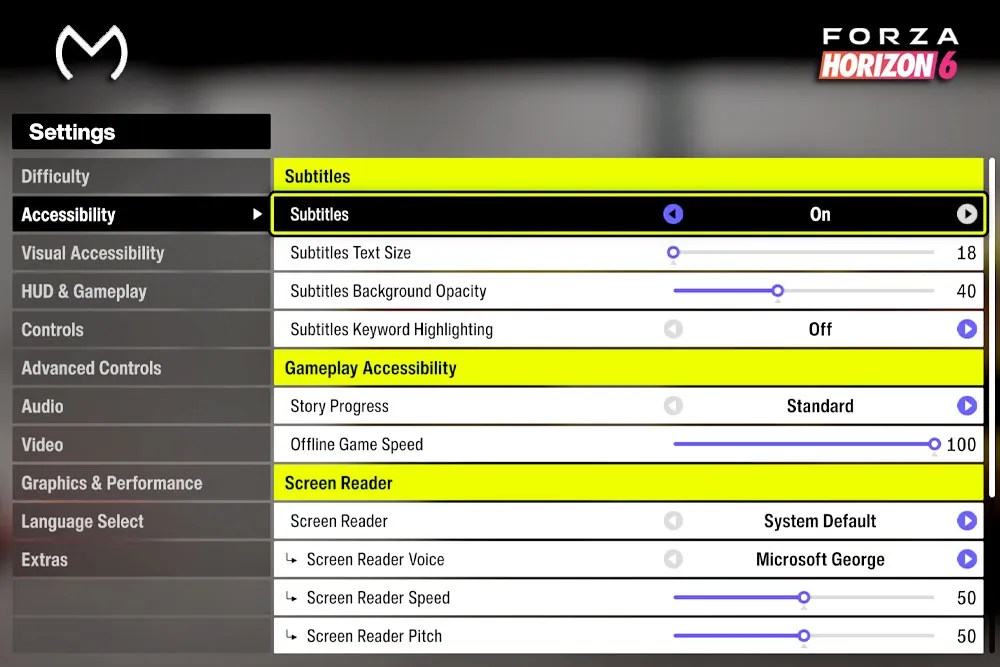
- Use Accessibility for High Contrast, subtitles, Screen Reader, and visual comfort.
- Open Difficulty for Drivatar level, steering, braking, and Rewind.
- Check Gameplay & HUD for Car Proximity Radar.
- Use Controls and Advanced Controls for remapping and dead zones.
Several options include live previews for quick comparison.
Visual Accessibility and High Contrast
High Contrast Mode separates key objects from the environment. Players can recolor their car, rivals, roads, collectibles, trees, and scenery.
It helps during night races, rain, or crowded Tokyo streets. Deuteranopia, Protanopia, and Tritanopia settings support different color-vision needs.
Other useful options include larger menu text, longer notifications, moving-background controls, HUD toggles, motion-blur adjustment, and camera FOV settings on supported PC setups.
When heavy effects reduce visual comfort, the best PC graphics settings for FH6 can improve clarity without replacing accessibility options.
AutoDrive, Assists, and Game Speed
AutoDrive works through ANNA in supported free-roam and offline activities. Set a waypoint, open ANNA with the D-pad, activate AutoDrive, and use any driving input to take control again.
What’s Next can suggest an activity and place the route automatically.
Useful assists include:
- Auto-Steering or Assisted Steering
- Assisted Braking and full Driving Line
- Traction and Stability Control
- Rewind and Tourist Drivatar difficulty
Offline Game Speed slows free roam and offline races while menus and audio stay responsive, giving players more time to react and manage inputs.
Where AutoDrive Has Limits
AutoDrive handles the normal route following well, but it may stop short of a collectible, miss an awkward entrance, or struggle with activities without a standard route.
It also does not replace the full Blind Driving Assists found in Forza Motorsport.
Subtitles, Audio, and Screen Reader
Subtitle controls include text size, background opacity, keyword highlighting, and previews, keeping dialogue readable against moving scenery.
Separate audio sliders cover dialogue, radio music, vehicles, and environmental sound. Lowering background channels can make warnings clearer.
Screen Reader narrates supported buttons, menu text, and interface elements. Blind players can combine it with ANNA, What’s Next, map sounds, and AutoDrive.
Some specialist menus may still have limited narration. The official FH6 accessibility FAQ currently lists ASL and BSL picture-in-picture support as planned for a post-launch update, with no confirmed release date.
Controls and Motor Accessibility
FH6 supports controller remapping and up to five custom profiles. Windows PC also supports keyboard, mouse, racing wheels, and multiple USB devices.
Advanced Controls let you adjust inner and outer dead zones for steering, acceleration, and braking. A smaller inner dead zone registers movement sooner, helping players who cannot use the full range of a stick, trigger, or wheel.
Alternative layouts can move acceleration and braking away from the triggers. Estate Build Mode, EventLab World Builder, Drone Mode, and Photo Mode may still keep some fixed inputs.
When rumble disappears after changing profiles or switching between USB, Bluetooth, and Steam Input, these controller vibration fixes cover the common causes.
Recommended Setups
Reduced Input
Use AutoDrive, Auto-Steering, Assisted Braking, Tourist difficulty, and Rewind.
Low Vision
Enable High Contrast, larger text, longer notifications, collectible highlights, and Proximity Radar audio cues.
Slower Reactions
Lower Offline Game Speed, keep the full Driving Line active, and use Assisted Braking. Rewind removes the pressure of restarting.
Cockpit View
Car Proximity Radar, audio warnings, and a wider FOV make nearby vehicles easier to track.
Explore FH6 services for easier account progression:

Platform and Technical Notes
Players switching between Xbox Series X|S and Windows PC should understand how FH6 crossplay and cross-save handles progression. Accessibility preferences and control layouts may still need checking on each device.
When settings fail to save, menus freeze, or the game closes while applying changes, try the standard FH6 PC crash fixes before deleting profiles or configuration files.
Final Takeaway
Build the setup around the biggest barrier instead of enabling everything at once. AutoDrive and driving assists reduce physical input, High Contrast improves visibility, while Offline Game Speed and Rewind provide more time to react.
FAQs
Does Forza Horizon 6 have AutoDrive?
Yes. Set a waypoint, open ANNA, and activate AutoDrive during supported free-roam and offline activities.
Can You Slow Down Forza Horizon 6?
Yes. Offline Game Speed slows offline driving and races while keeping menus and audio responsive.
Does FH6 Have a Screen Reader?
Yes. It narrates supported buttons, menu text, and interface elements.
Which Settings Help Players With Limited Mobility?
AutoDrive, Auto-Steering, Assisted Braking, custom controls, Tourist difficulty, and Rewind are strong starting points.
Is FH6 Fully Accessible for Blind Players?
It includes Screen Reader, ANNA, What’s Next, AutoDrive, map sounds, and High Contrast, but not the complete Blind Driving Assists available in Forza Motorsport.