





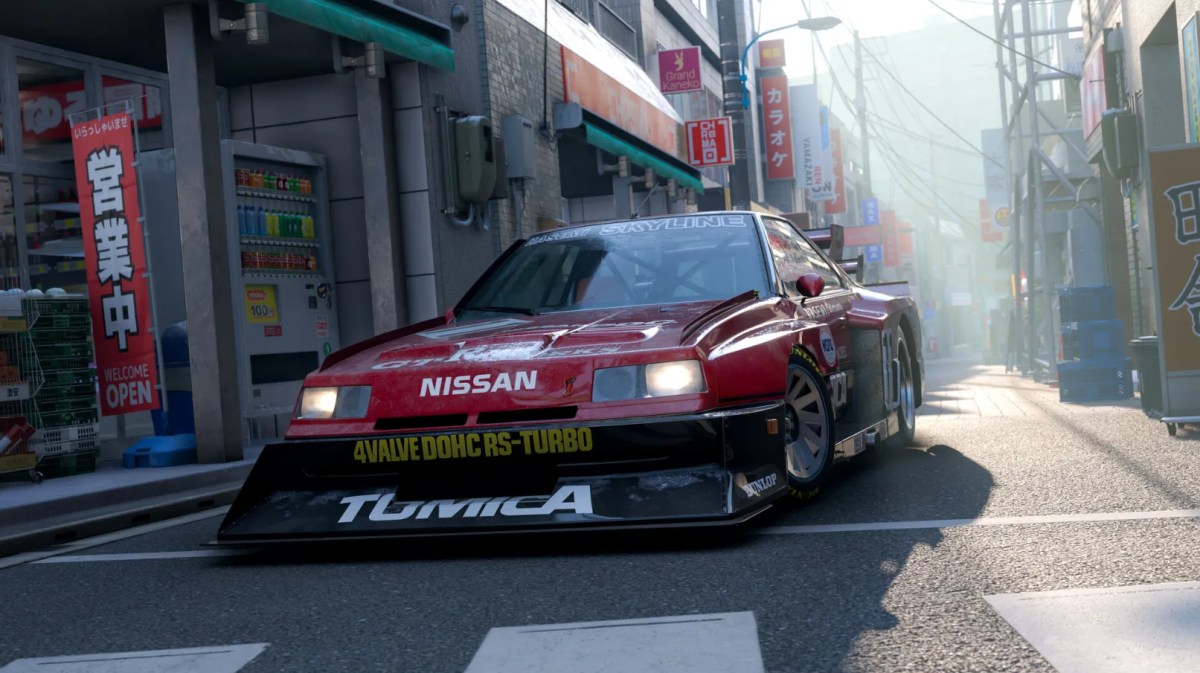
Forza Horizon 6 stuttering on PC is a known launch-week issue, not a hardware problem. The game compiles shaders in real time, streams large world assets continuously, and leans heavily on a single CPU thread in dense areas like Tokyo and Osaka. Before diving into fixes, it helps to have your graphics settings in a good place first. Check out our Best PC Forza Horizon 6 Graphics Settings For FPS Boost to make sure your baseline setup is not adding to the problem. All of that creates frame pacing problems that feel worse than your actual FPS suggests. This article will cover ways to fix this issue.
1. Enable Advanced Shader Delivery (AMD GPU Only)
If you are running an AMD RDNA 3 or RDNA 4 GPU, there is one major fix that will help you immensely. The Advanced Shader Delivery feature decreases shader load times from 90 seconds to about 5 seconds and dramatically reduces traversal stutters.
To enable it: install AMD Adrenalin 26.5.1 or newer, download the Xbox PC App, join the Xbox Insider Program, then go to Xbox App Settings, General, Game Performance, and toggle Advanced Shader Delivery on. Launch FH6 through the Xbox app.
For those running NVIDIA and Intel GPUs, Advanced Shader Delivery isn’t supported yet, according to Microsoft’s confirmation. This is expected to come out sometime in 2026.
2. Clear Your DirectX Shader Cache
A corrupted shader cache causes persistent stuttering, especially after driver updates. Open the Start Menu, search for Disk Cleanup, select your C: drive, check the DirectX Shader Cache, and click OK. Restart your PC after. The first session after clearing will stutter temporarily while shaders rebuild, but performance stabilises after 10 to 20 minutes of driving.
3. Install FH6 on an NVMe SSD
FH6 streams terrain, textures, crowd, and weather assets continuously at lightning speeds. The HDD cannot keep up, causing stuttering. The SaTA SSD will deliver an unreliable experience. The PCIe 4.0 NVMe SSD will be the minimum required for seamless play. If the game is currently installed on a slow drive, relocate it. On Steam, go to Library, Properties, Installed Files, and select Move Install Folder. On the Xbox app, right-click FH6, go to Manage, and select Move
4. Adjust These Specific Graphics Settings
Certain settings hammer the CPU streaming thread far more than others. Lower these first before touching anything else:
| Setting | Recommended Value |
| Environment Geometry Detail | Medium |
| Reflection Quality | Medium |
| Shadow Quality | Medium |
| Ray Tracing | Off |
| World Car LOD | Medium |
| Terrain Quality | Low |
| Texture Quality | Ultra |
| DLSS / FSR | Quality Mode |
Disabling Ray Tracing alone usually gives you up to a 20-30% increase in FPS and greatly reduces city stuttering. Dropping Geometry Detail from Ultra to Medium often does more than a GPU upgrade would.
5. Disable Overlays
Discord, Steam, Xbox Game Bar, and GeForce Experience overlays all conflict with FH6’s rendering pipeline. Turn them all off. Discord: Settings, Game Overlay, off. Steam: Settings, In-Game, disable overlay. Xbox Game Bar: Windows Settings, Gaming, off. GeForce Experience: Settings, In-Game Overlay, off.
6. Cap Your FPS
Having no FPS cap produces unpredictable frame pacing that can feel very choppy, regardless of your statistics. Capping your FPS slightly lower than the refresh rate of your monitor.
| Monitor Refresh Rate | Recommended Cap |
| 60 Hz | 60 FPS |
| 120 Hz | 117 FPS |
| 144 Hz | 141 FPS |
| 165 Hz | 162 FPS |
7. Update Your GPU Drivers
Upgrade to the most recent drivers with a fresh installation. For NVIDIA, upgrade to Game Ready Driver 590.x or later, choosing the Clean Installation tab. As for AMD users, get Adrenalin 26.5.1 or later, selecting Factory Reset.
Conclusion
Stuttering in FH6 on PC can be solved. If you own AMD graphics cards, Advanced Shader Delivery must be a top priority. Since Playground Games always releases many post-launch patches, performance will definitely continue to improve moving forward. Learn how to squeeze the best performance out of FH6 in our guide, Best Graphics Settings for Low-End PC.
Check out some of our most popular Boosting services: