




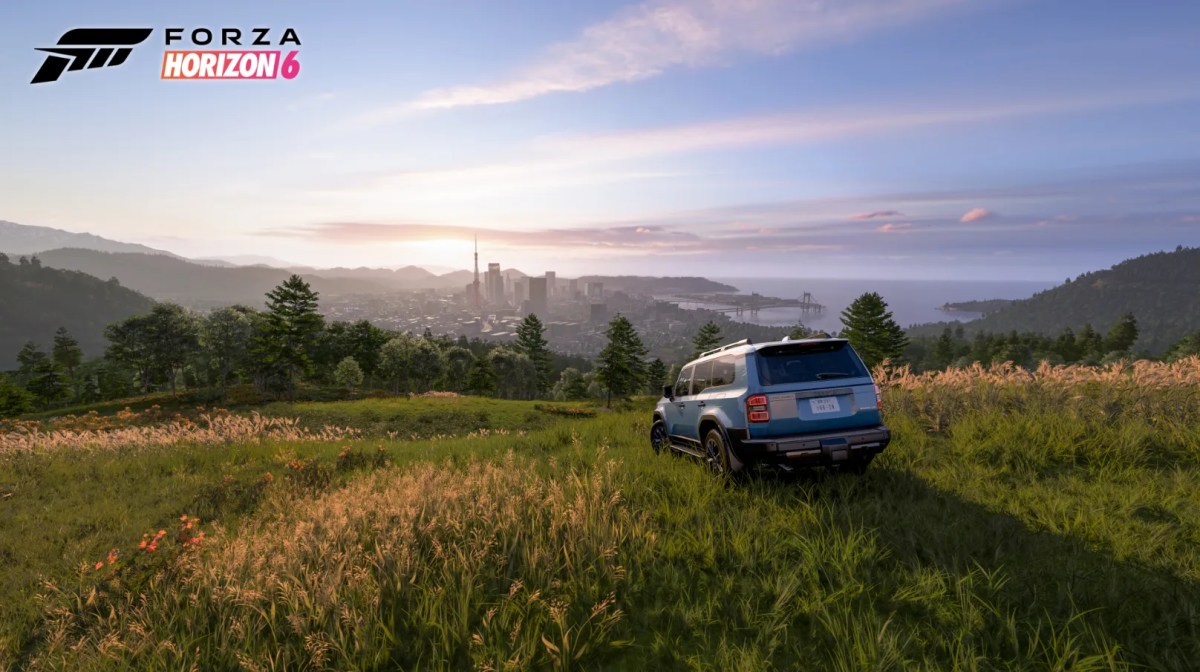
If you want more frames per second in Forza Horizon 6 without turning the game into a blurry mess, these are the exact Forza Horizon 6 graphics settings to change. The goal is simple: disable expensive visual effects that add little during high-speed racing while keeping settings that preserve clarity and visibility.
The Worst FPS Settings To Disable First
Ray Traced Global Illumination is almost always the most intensive setting in the game. It typically reduces performance considerably in benchmark testing when tested against benchmarks. At high speed, any additional illumination is barely even visible. Turn this setting to Off.
Ray Traced Reflections Quality is one of the largest FPS hogs you can turn off in the settings menu. Turn it off and rely on screen-space reflections, which provide a much better balance between image quality and performance.
Volumetric Fog Quality needs to be set from Ultra to Medium. No matter how it is measured, the setting ranks as one of the more expensive graphic options in the ForzaTech engine. While the exact impact varies by weather, Medium preserves fog effects without the heavy GPU cost.
Also check out Forza Horizon 6 bonus board locations if you’re struggling to find them.
Settings That Recover Performance
Shadow Quality set to High, not Ultra or Extreme. High maintains smooth shadow edges and proper rendering distance. Ultra and Extreme add sharpness you will never notice during active gameplay.
Screen Space Reflections Quality to Off if you are not using ray-traced reflections. Turning SSR off recovers frames with visual trade-offs that are difficult to spot at speed.
Particle Effects Quality to Medium: When you kick up dust, rain spray, or collision debris, this setting controls how many particles render. Medium keeps effects readable without causing frame rate dips during intense action scenes.
PS: We’re selling rare cars in Forza Horizon 6 so check them out before they’re all gone!
The Smart Upscaling Choice For FPS
Set upscaling based on your resolution target.
- 4K: Use DLSS Performance (Nvidia) or FSR Performance (AMD).
- For 1440p, use Balanced.
- For 1080p, stick to Quality.
Do not enable Frame Generation unless your base rendered FPS stays above 60 consistently. Frame Generation adds latency and can make input feel less responsive.
Settings That Have Minimal Performance Impact
These Forza Horizon 6 graphics settings show little to no measurable performance cost. Leave them higher without worrying about FPS loss:
- Car Level of Detail (performance difference between presets is typically small)
- Deformable Terrain Quality (minimal GPU impact)
- Car Reflection Quality (low performance overhead)
Texture Quality primarily affects VRAM usage rather than raw GPU performance. As long as your card has sufficient VRAM, reducing texture quality provides little to no FPS improvement.
Best FPS Settings for Forza Horizon 6
| Setting | Recommended Value |
| Ray Traced GI | Off |
| Ray Traced Reflections | Off |
| Volumetric Fog | Medium |
| Shadow Quality | High |
| Screen Space Reflections | Off |
| Particle Effects | Medium |
| Environment Texture | High |
| Shader Quality | High |
| Car LOD | Ultra |
| Upscaling | Performance (4K) / Balanced (1440p) / Quality (1080p) |
| Frame Generation | Off |
| V-Sync | Off |
| Motion Blur | Off |
Expected Performance
Performance is dependent on hardware, resolution, and location. A modern mid-tier graphics card running 4K with these settings should easily run above 60 frames per second in most open-world driving situations. A more outdated graphics card running 1080p may aim for 60 frames per second, depending on the environment.
Handheld PC performance will be highly variable based on power usage, resolution, and whether or not any upscaling is applied. Use the embedded benchmarking program after making these modifications to test stability on your specific hardware. While you’re here, check out our Toyota Fanta DLC codes for sale and learn about the best JDM cars in Forza!
Check out some of our most popular Boosting services: